Learn System · SSC CGL
Student User Manual
A step-by-step guide to preparing for the SSC CGL examination with Learn System: from your first login to daily practice, mock tests, progress analysis and revision.
Version 1.0 · September 2026 · Written for students and for colleagues testing the system.
Online version: https://ls.nsrk.in/manual · Website: https://ls.nsrk.in
Watch: 4 short videos
Prefer watching to reading? Each video shows one task on a phone, step by step, with captions (no sound needed).
Short how-to videos (about 1 minute each, captions only) are on the web version of this manual: https://ls.nsrk.in/manual#videos — Getting started · Study one topic · Take a test · Progress and revision.
1. What Learn System does
Learn System is an online preparation platform for the SSC CGL (Staff Selection Commission Combined Graduate Level) examination. It works in any modern web browser, on a phone or on a computer. Nothing needs to be installed.
It covers all six SSC CGL subjects:
- Quantitative Aptitude and Mathematical Abilities
- General Intelligence and Reasoning
- English Language and Comprehension
- General Awareness (including current affairs)
- Computer Knowledge
- Statistics (optional paper)
Learn System does more than give you questions. It watches how you answer (right or wrong, how fast, whether you needed a hint) and uses that to tell you what to study next. The whole system follows one simple learning loop:
| Step | What you do | Where |
|---|---|---|
| Diagnose | Take a one-time baseline test so the system knows your starting level. | More → Diagnostic |
| Learn & practise | Read short lessons and practise topic by topic, or in mixed sets. | Practice |
| Test | Take timed sectional tests and full mock tests in real exam conditions. | Tests |
| Review mistakes | Read explanations for every question you missed, then retest similar questions. | Session results, Progress |
| Revise | Questions you got wrong come back after 1, 3, 7 and 21 days; quick-recall cards keep facts fresh. | Practice → Spaced Revision, Revision |
2. Getting started and logging in
Opening the website
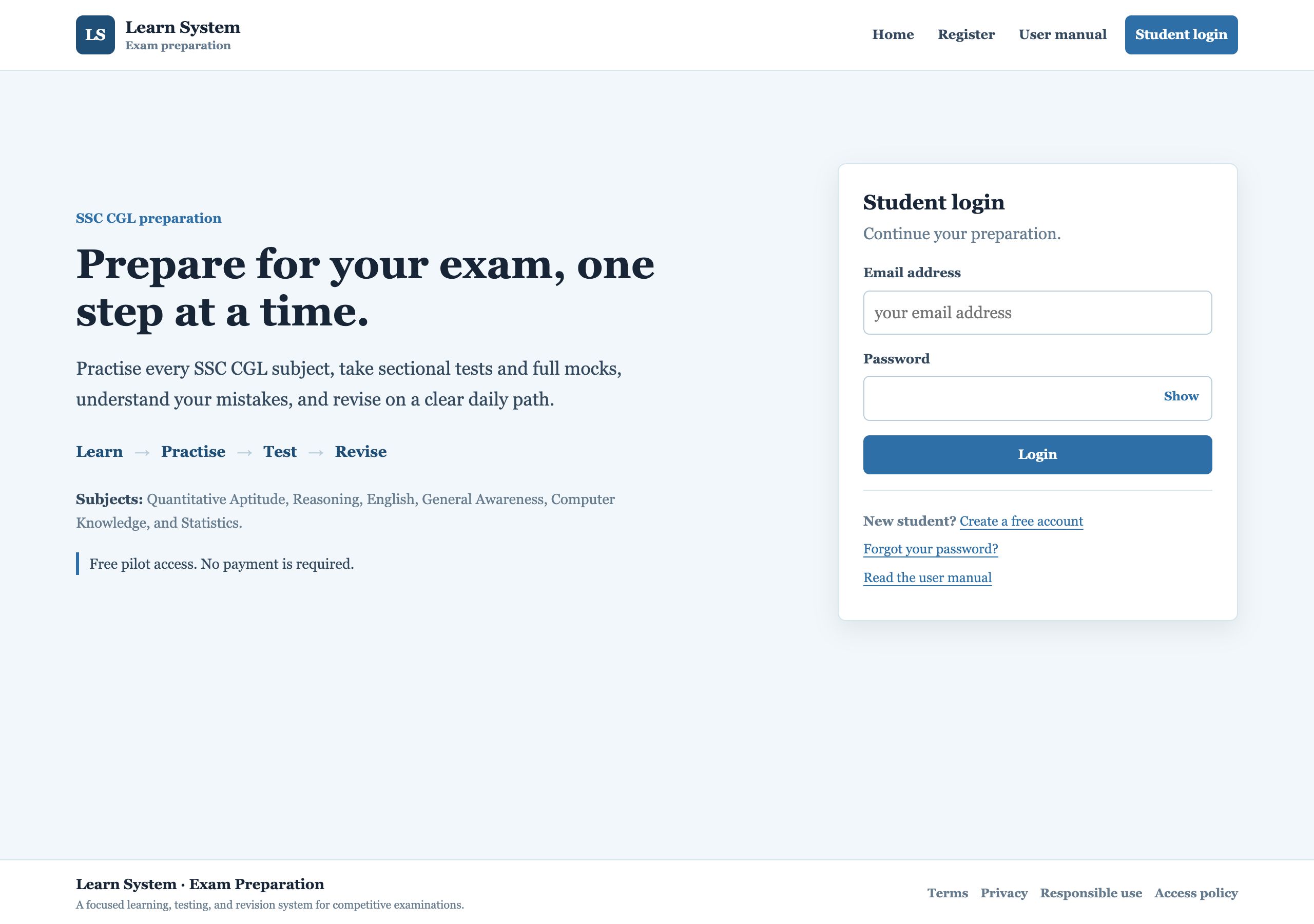
Open your browser (Chrome, Safari, Edge or Firefox) and go to https://ls.nsrk.in. The home page shows what Learn System offers and has a Student login box on the right (or below, on a phone).
Logging in
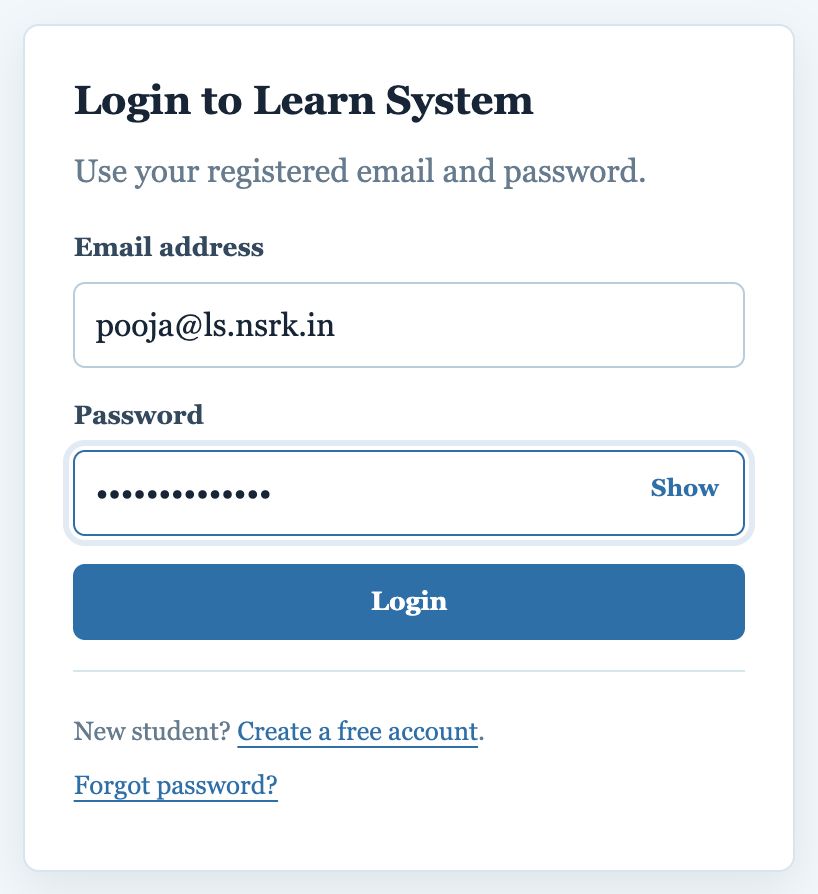
- Type your email address in Email address. Capital or small letters do not matter.
- Type your password in Password. Passwords are case-sensitive.
- Press Login. You arrive at your dashboard.
Creating a new account (real students)
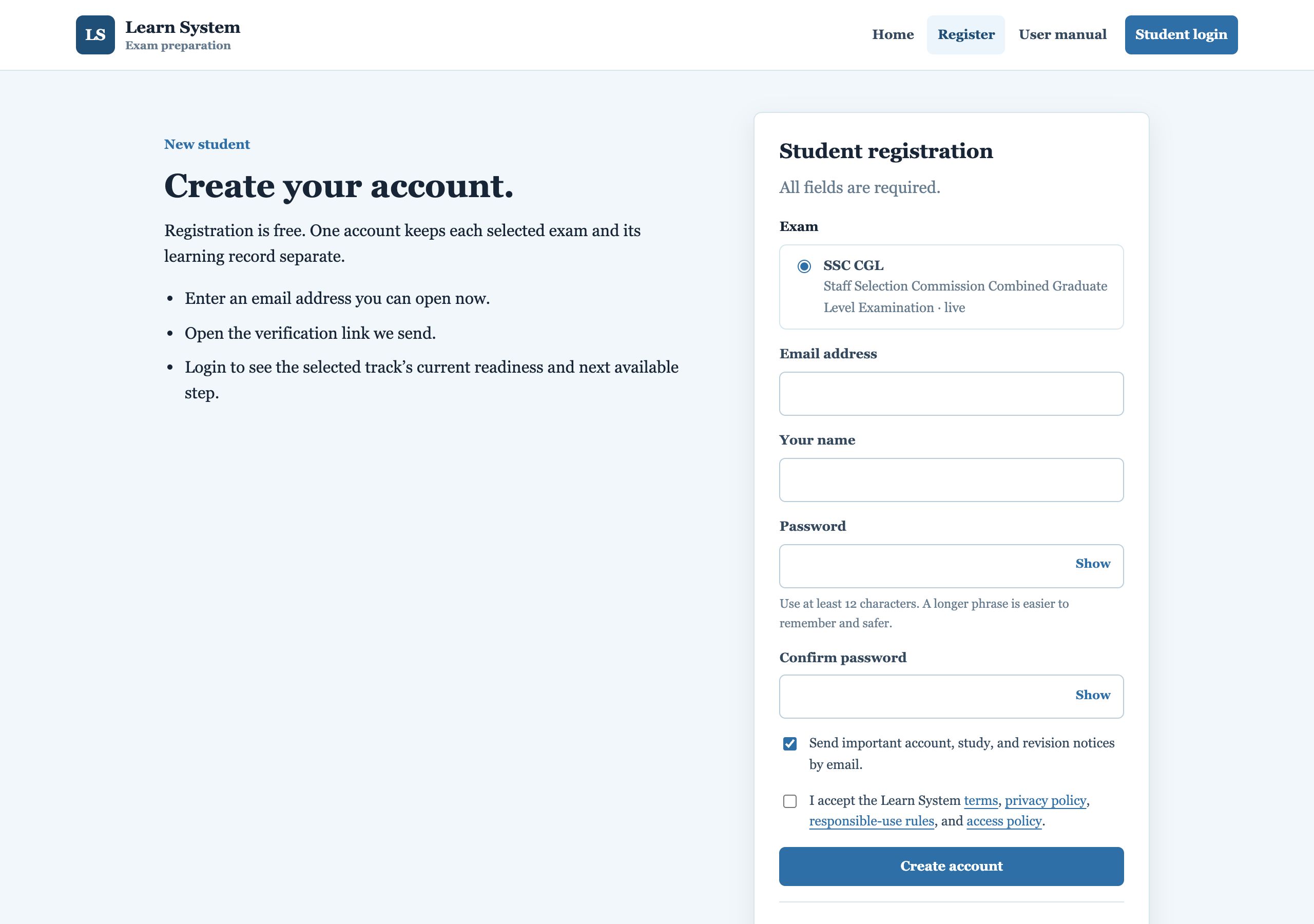
- On the home page choose Register (top menu), or Create a free account under the login box.
- Select the exam SSC CGL.
- Enter an email address you can open right now, your name, and a password of at least 12 characters (a short phrase is easiest to remember). Type the password again to confirm.
- Tick the box to accept the terms, privacy policy, responsible-use rules and access policy. Optionally tick the email-notices box.
- Press Create account. Open the email we send you and click Verify email address.
- Type the password you chose and press Verify and continue. You are logged in straight away. Forgot the password? Press Forgot it? on that page and choose a new one.
Forgot your password?
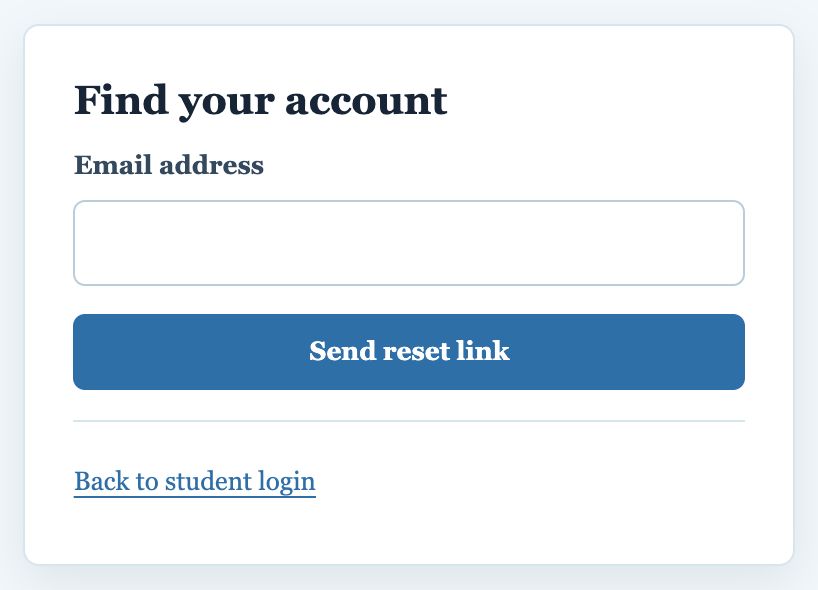
Choose Forgot your password? under the login box, enter your email address and press the button. You will receive an email with a link to set a new password. The link works for a limited time.
Logging out
Open More → Log out. Always log out on a shared or public computer.
3. Finding your way around
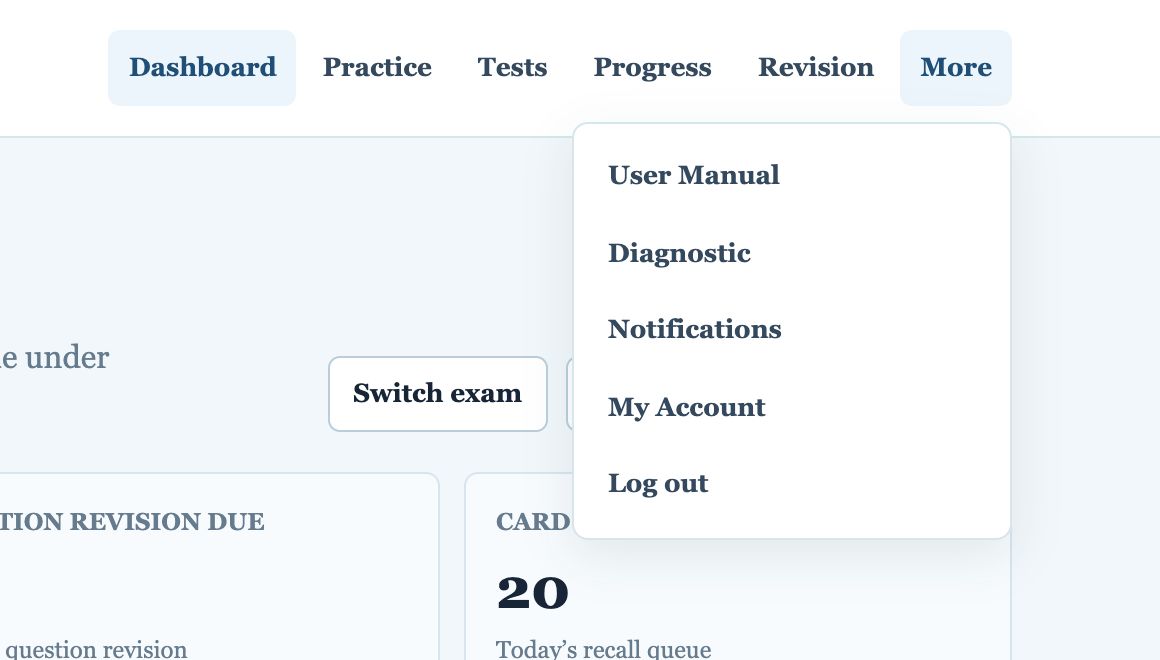
The top menu (computer)
After login, every page has the same menu at the top:
| Menu item | What it is for |
|---|---|
| Dashboard | Your home page: readiness, today’s target, what to do next. |
| Practice | All practice modes, topic lessons and spaced revision of questions. |
| Tests | Full mock tests and sectional tests in exam conditions, and your past test results. |
| Progress | Detailed analysis of your performance by subject, topic, difficulty and speed. |
| Revision | Quick-recall revision cards (facts, formulas, rules, traps). |
| More | User Manual, Diagnostic, Notifications, My Account and Log out. |
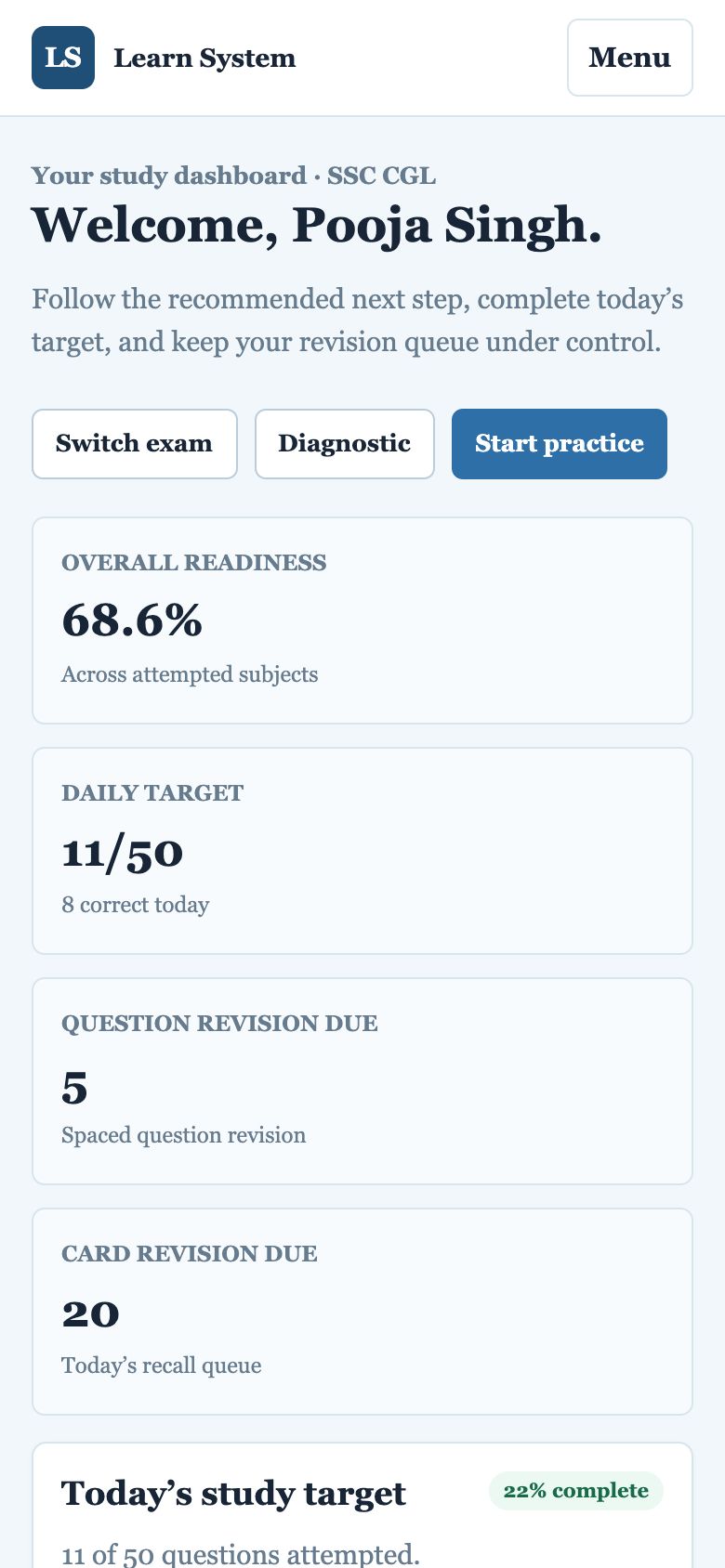
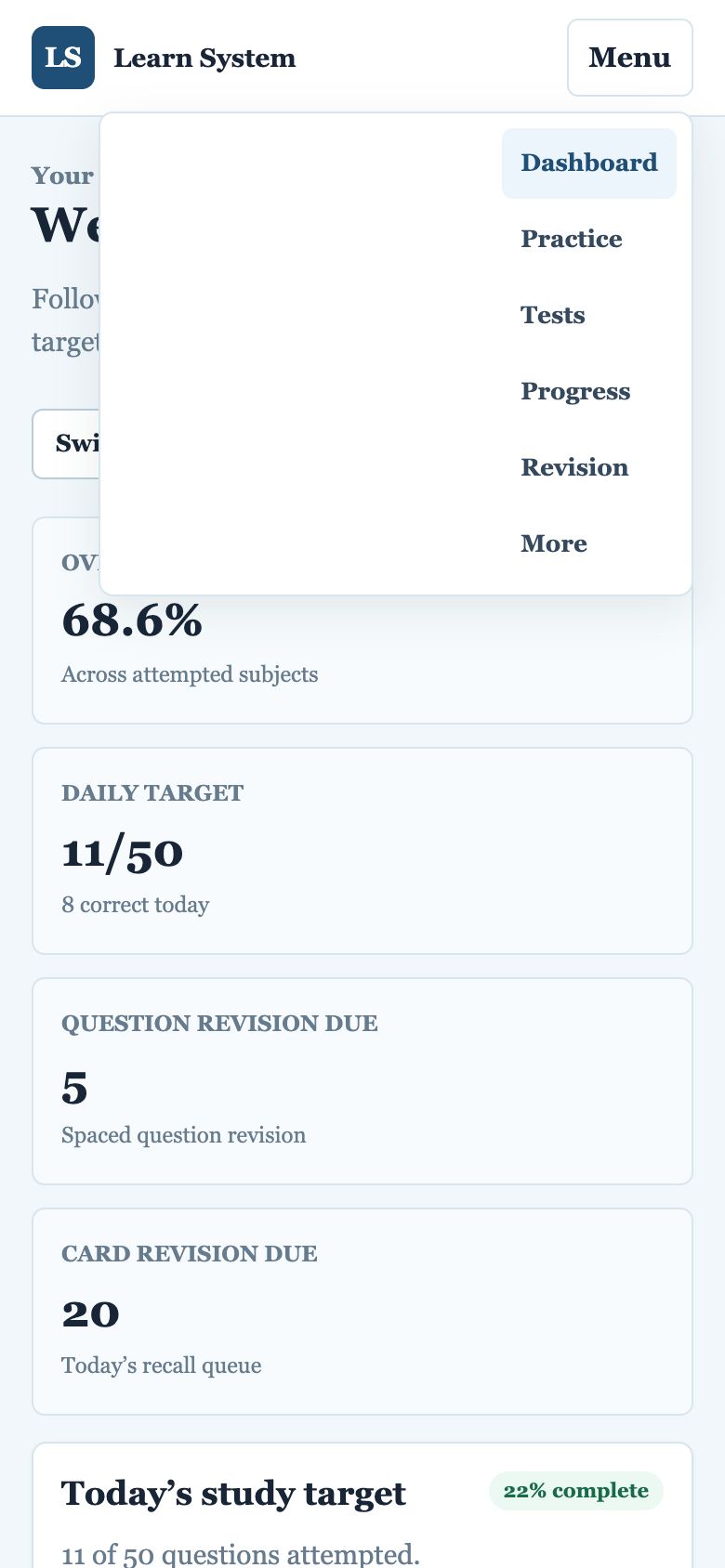
On a phone
On a phone the menu is folded into a Menu button at the top right. Tap it to see Dashboard, Practice, Tests, Progress, Revision and More.
4. Your dashboard
The dashboard is the first page you see after login. It answers three questions: How ready am I? What should I do today? What needs revision?
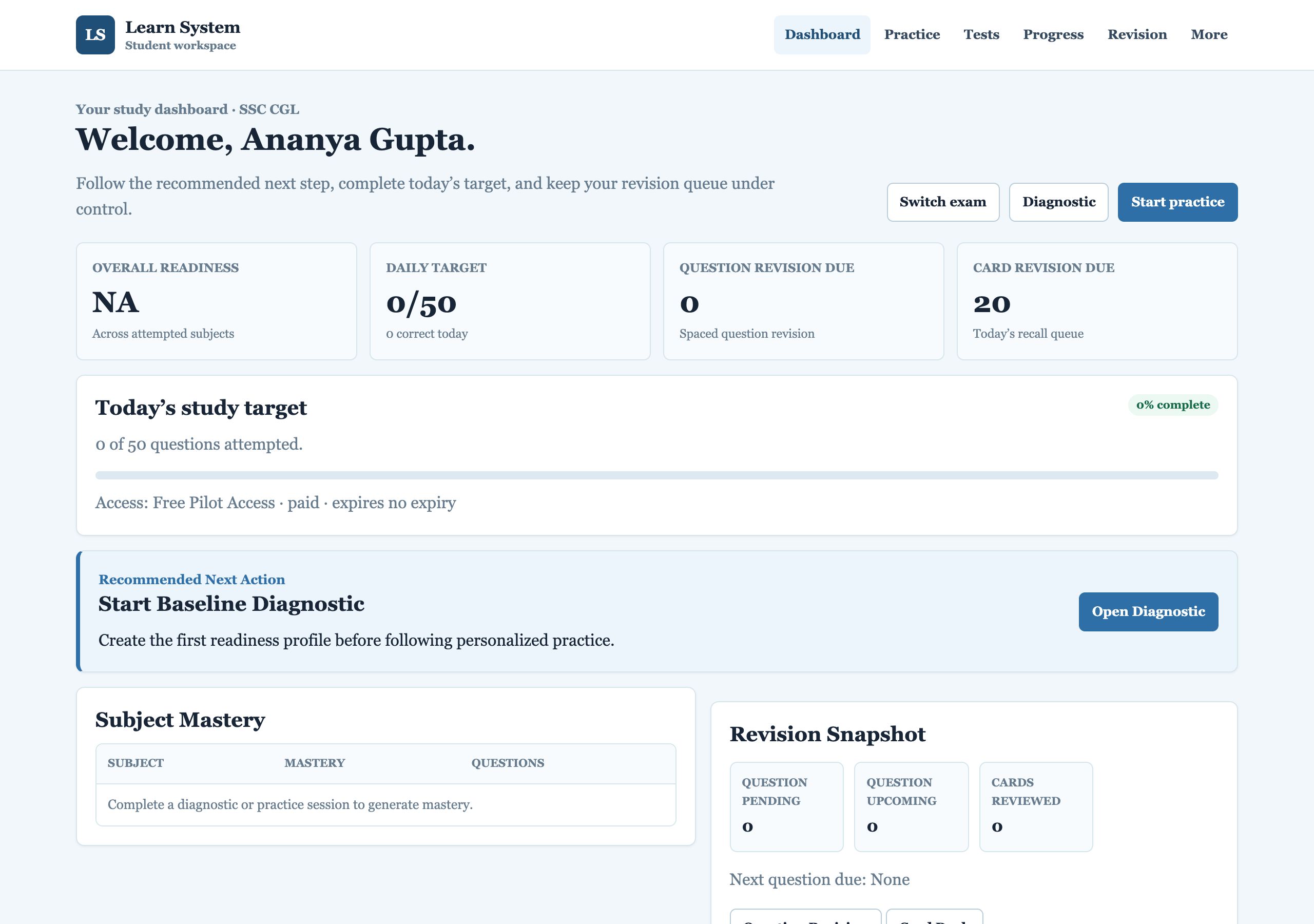
The four summary tiles
| Tile | Meaning |
|---|---|
| Overall readiness | Your overall exam-readiness score (0–100%) across the subjects you have attempted. See how readiness is calculated. |
| Daily target | Questions attempted today out of your daily goal (50 by default), and how many were correct. You can change the goal in My Account. |
| Question revision due | Previously attempted questions that are due to be answered again today (spaced revision). |
| Card revision due | Revision cards due for quick recall today. |
Today’s study target and Recommended Next Action
Below the tiles, a progress bar shows how much of today’s target is complete. The Recommended Next Action box is the most important part of the dashboard: it tells you the single best thing to do next, with a button to go straight there. Examples:
- Start Baseline Diagnostic: you are new and the system needs your starting level.
- Continue Active Session: you left a practice session or test unfinished.
- Clear Due Question Revision: questions are waiting for spaced revision.
- A study or practice suggestion for your weakest topic.
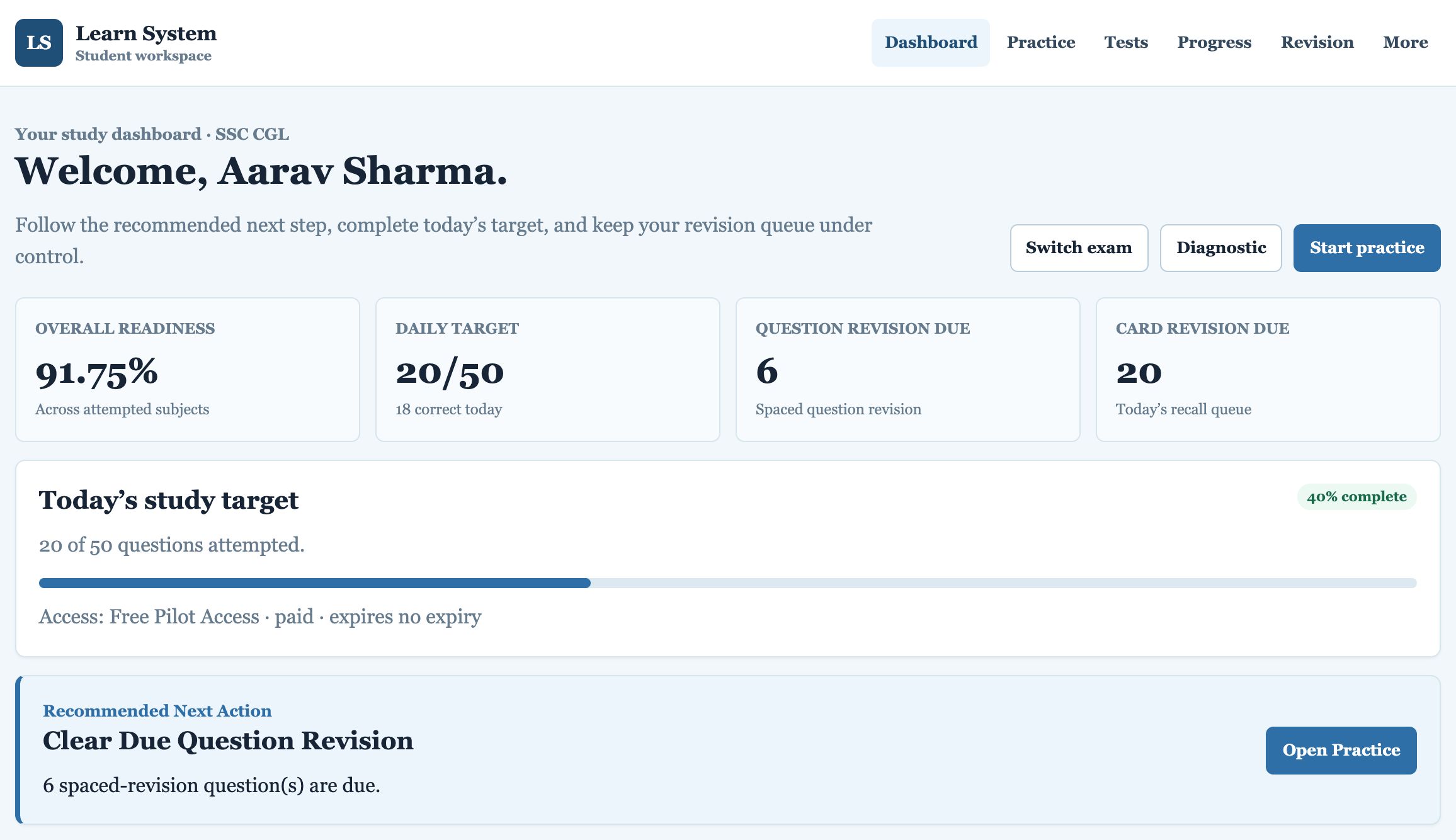
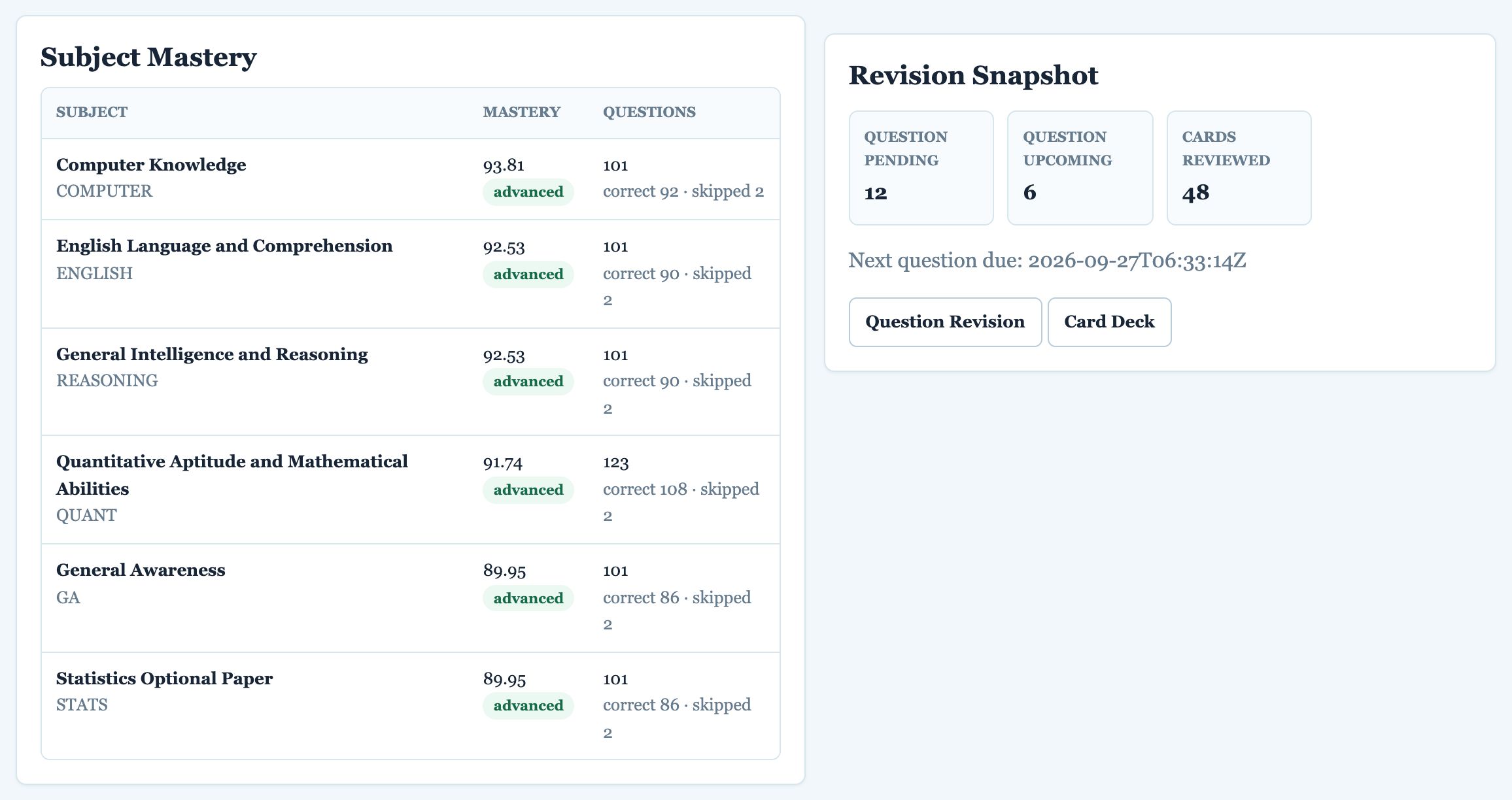
Subject Mastery
A table of all subjects you have attempted, with a mastery score, a readiness band (weak, developing, ready, advanced) and the number of questions answered, correct and skipped.
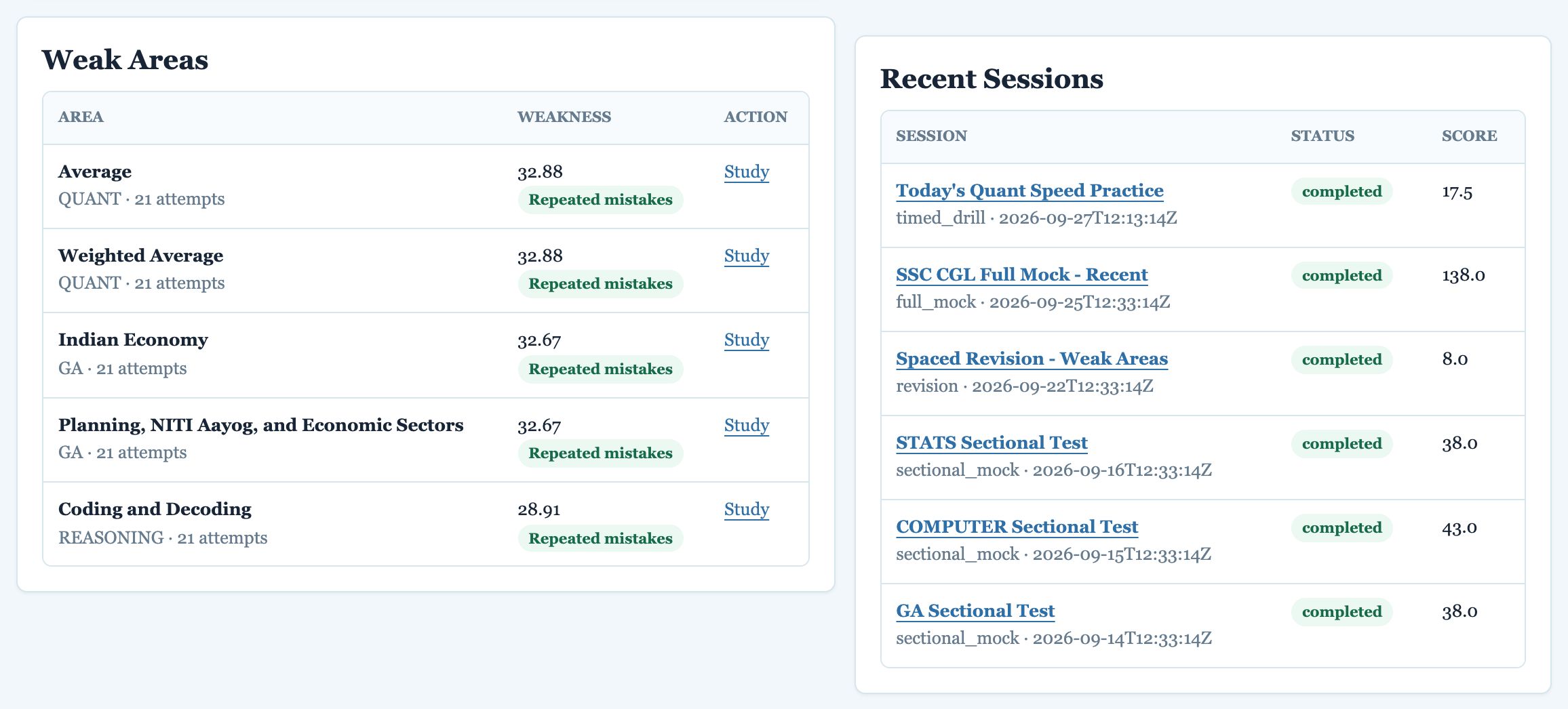
Revision Snapshot
How many questions are pending revision now, how many are coming up later, how many cards you have reviewed, and when the next question is due.
Weak Areas and Recent Sessions
Weak Areas lists the topics where you make the most mistakes, with a weakness score (higher means weaker) and the reason (for example, Repeated mistakes). Press Study to open the lesson for that topic. Recent Sessions lists your latest practice sessions and tests with their status and score.
Buttons at the top of the dashboard
- Switch exam: opens My Account to change the active exam (only relevant if you are enrolled in more than one).
- Diagnostic: opens the baseline diagnostic page.
- Start practice: opens the Practice page.
5. The baseline diagnostic
The baseline diagnostic is a one-time starting test. It checks all six subjects in a balanced way so that Learn System can build your first readiness profile and recommend what to study first. Take it at the very beginning.
| Questions | Time | Mode | Answers shown |
|---|---|---|---|
| 50 | 60 minutes | Strict (no hints) | After you submit |
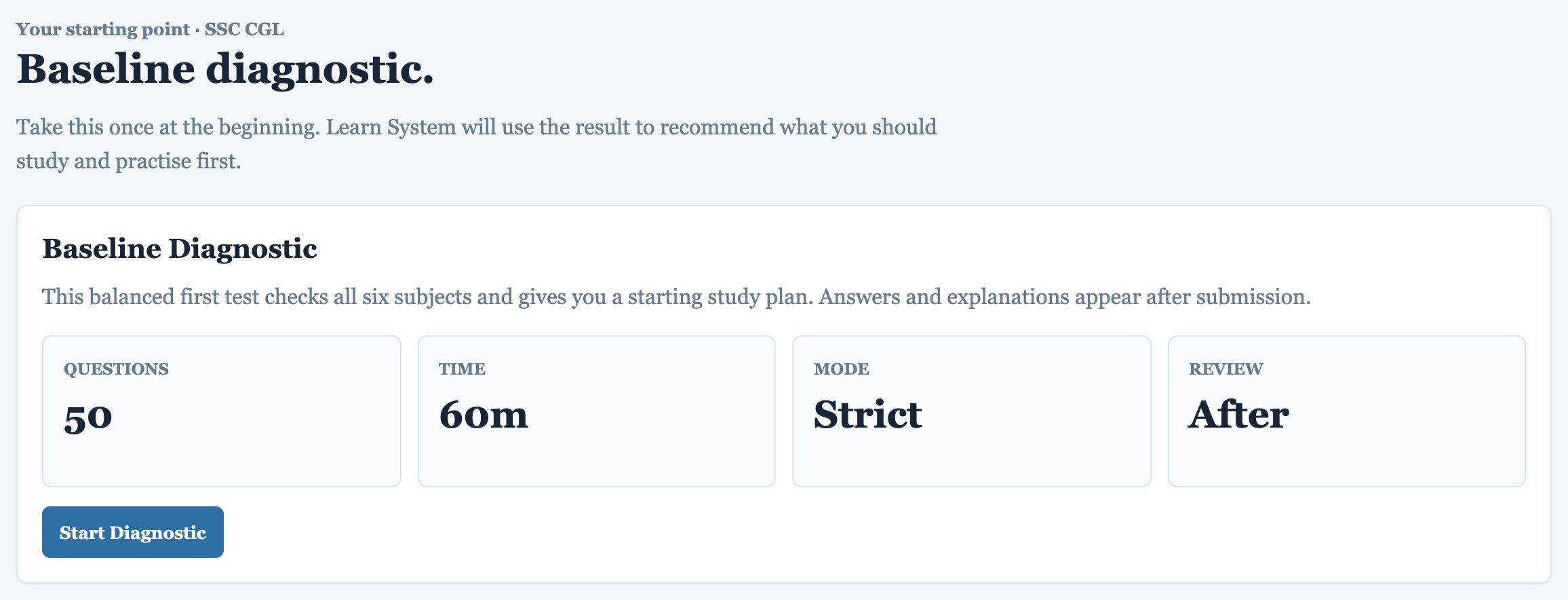
- Open More → Diagnostic (or press Open Diagnostic on the dashboard).
- Press Start Diagnostic. The timer starts.
- Answer each question and press Save answer, or Skip for now if unsure. See Answering questions.
- When you have finished, press Submit test and see results. The site asks you to confirm and tells you how many questions are still unanswered.
If you stop in the middle
You can leave and come back later. Your answers are saved, and the dashboard shows Continue Active Session. Press Continue to resume at the next unanswered question. Note that the timer keeps running while the session is open.

Your diagnostic result
After you submit, the Diagnostic page shows:
- First Recommended Path: where to begin your study.
- Initial Readiness: your starting mastery and band for each subject.
- First Weak Areas: the topics that need attention first.
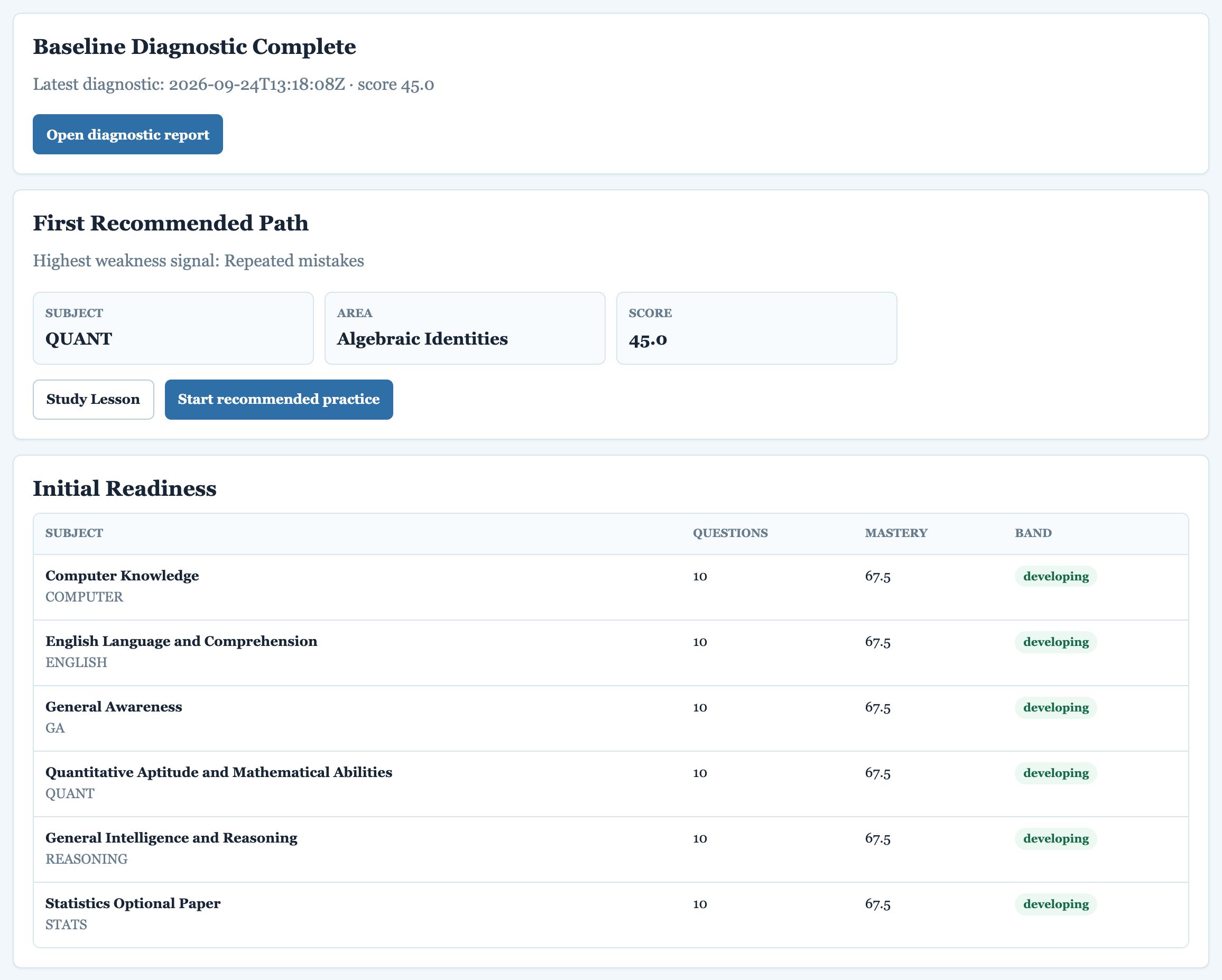
6. Answering questions
Every practice session, test and the diagnostic uses the same question screen.
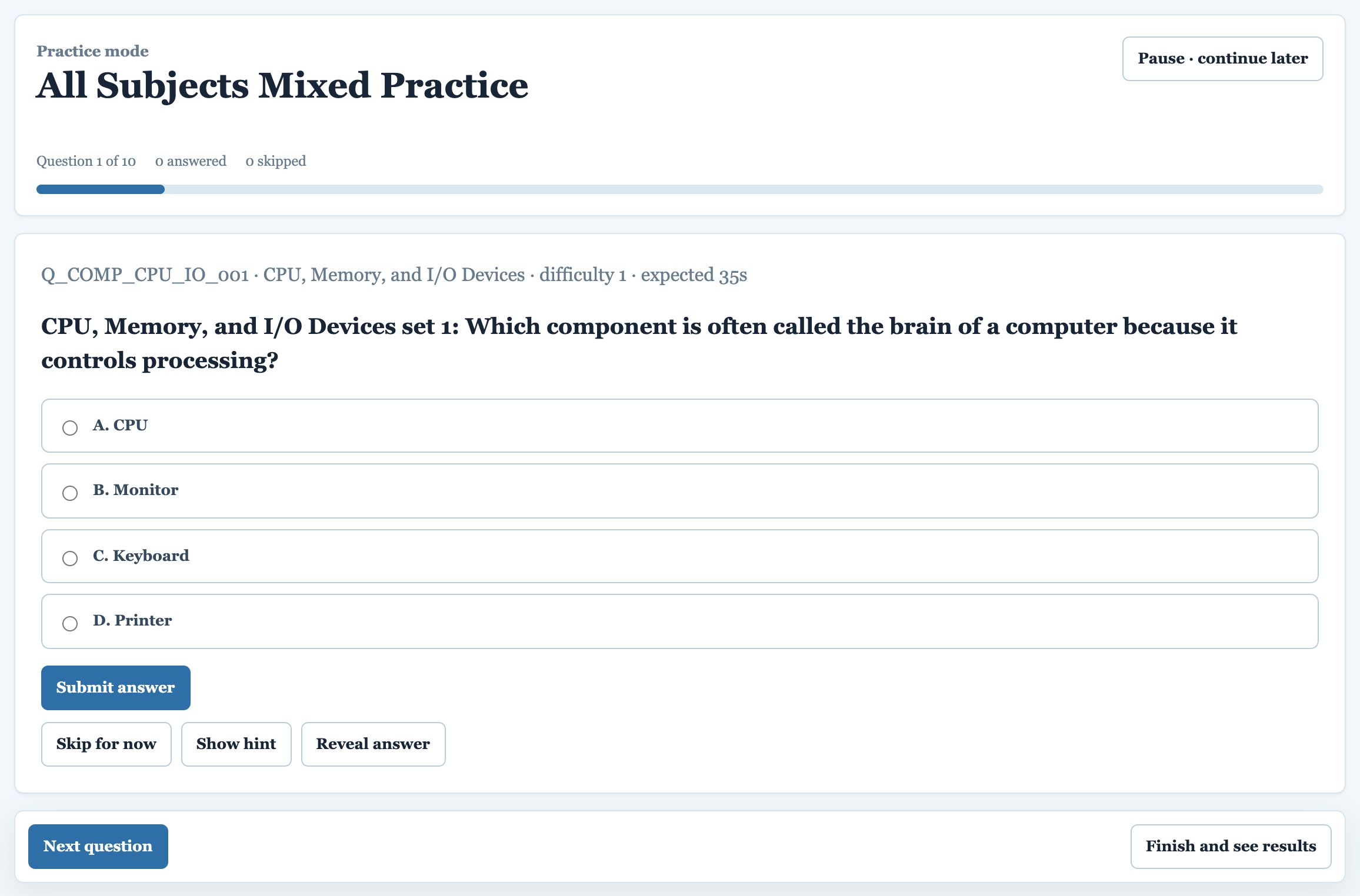
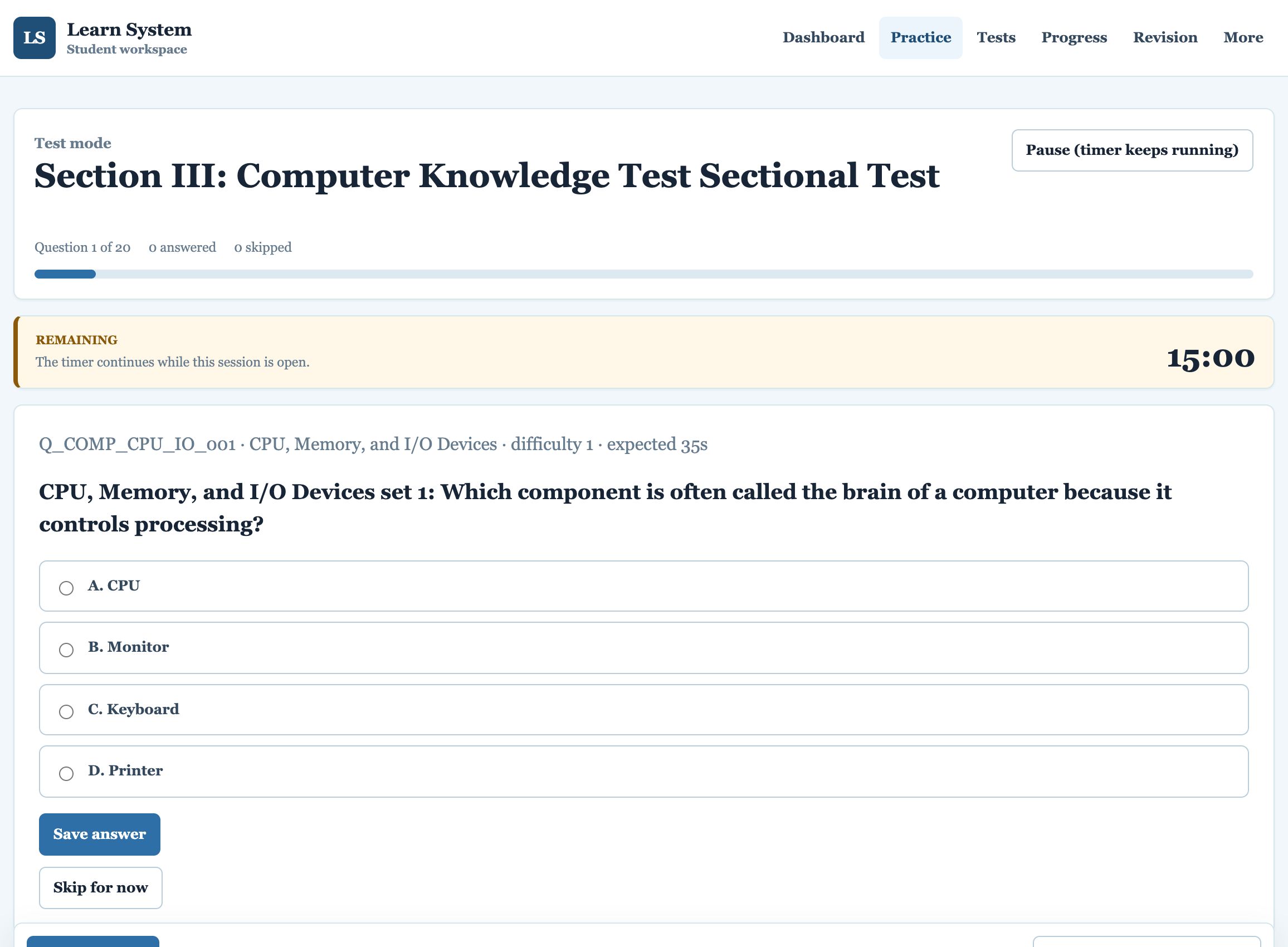
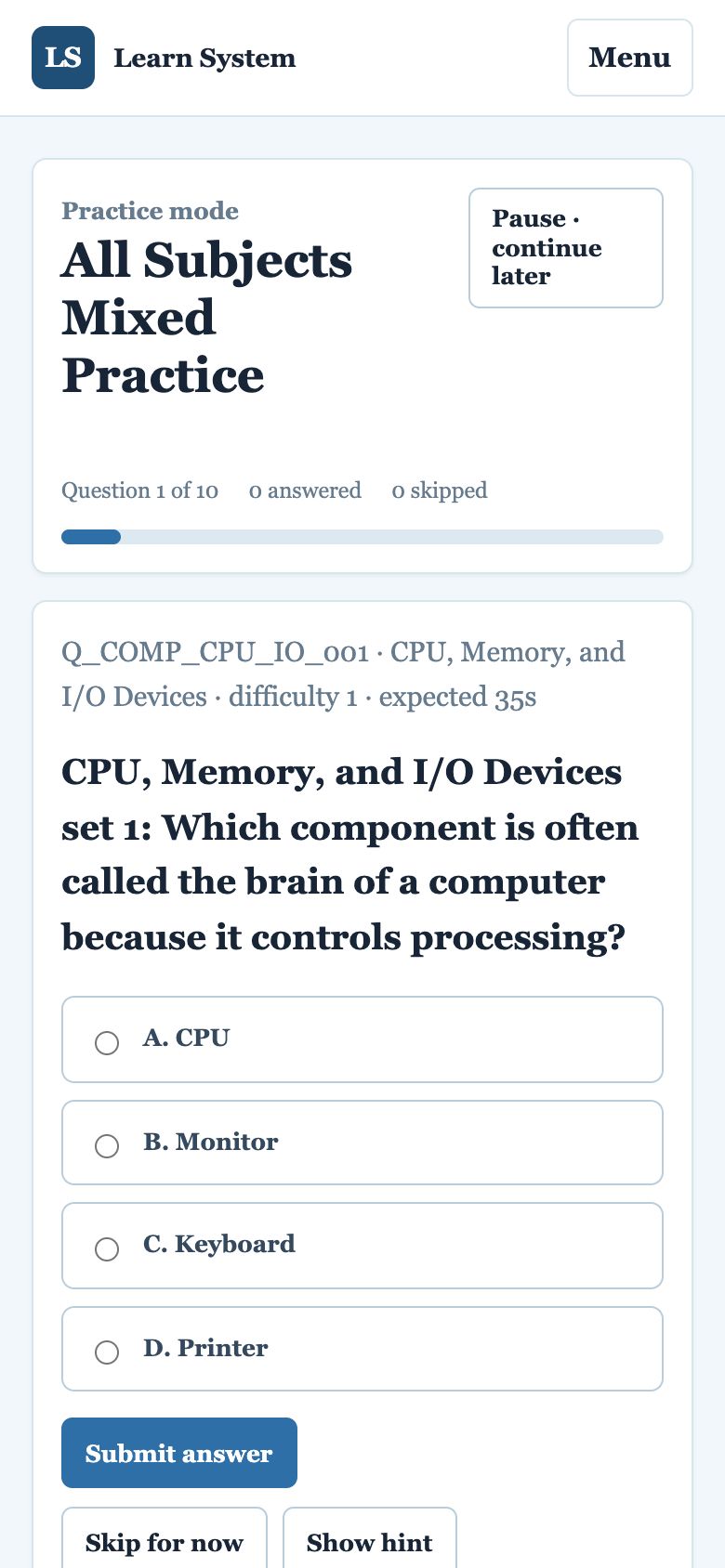
Parts of the question screen
- Header: the session name, Question X of Y, how many answered and skipped, and a progress bar.
- Question details line: the question code, topic, difficulty level (1 = easiest) and the expected time, meaning how long a well-prepared candidate should take.
- Options A–D: tap or click an option to select it.
- Buttons: explained below.
The buttons
| Button | What it does |
|---|---|
| Submit answer (practice) | Records your selected option. You stay on the question and see straight away whether you were right, with the full explanation. Choose an option first; if you forget, a red message reminds you. |
| Save answer (test) | Records your selected option and moves to the next question. Answers stay hidden until you submit the test. |
| Skip for now | Leaves the question unanswered and moves on. You can come back with Previous. Skipped questions are prioritised for revision. |
| Show hint (practice only) | Shows a hint without giving away the answer. Hint use is recorded. |
| Reveal answer (practice only) | Shows the correct answer. Use it only when truly stuck; it is recorded and the question will come back for revision. |
| Previous / Next question | Move between questions in the session. |
| Finish and see results (practice) / Submit test and see results (test) | Ends the session and opens your results. You are asked to confirm first, and told how many questions are unanswered (they count as skipped). |
| Pause · continue later | Leaves the screen without finishing. Your answers are kept and the session stays open, so you can continue later from the dashboard. In timed sessions this button reads Pause (timer keeps running) because the clock does not stop. |
Seeing the explanation
In practice mode, when you press Submit answer you stay on the same question and see:
- A message at the top: Correct. or Not quite. The correct answer is A.
- The correct option highlighted in green (your wrong choice, if any, in red), with a one-line reason under every option explaining why it is right or wrong.
- Explanation: why the answer is correct.
- Standard Method: the step-by-step approach.
- Shortcut: a faster exam technique, where one exists.
- Remediation: what to do to fix this kind of mistake.
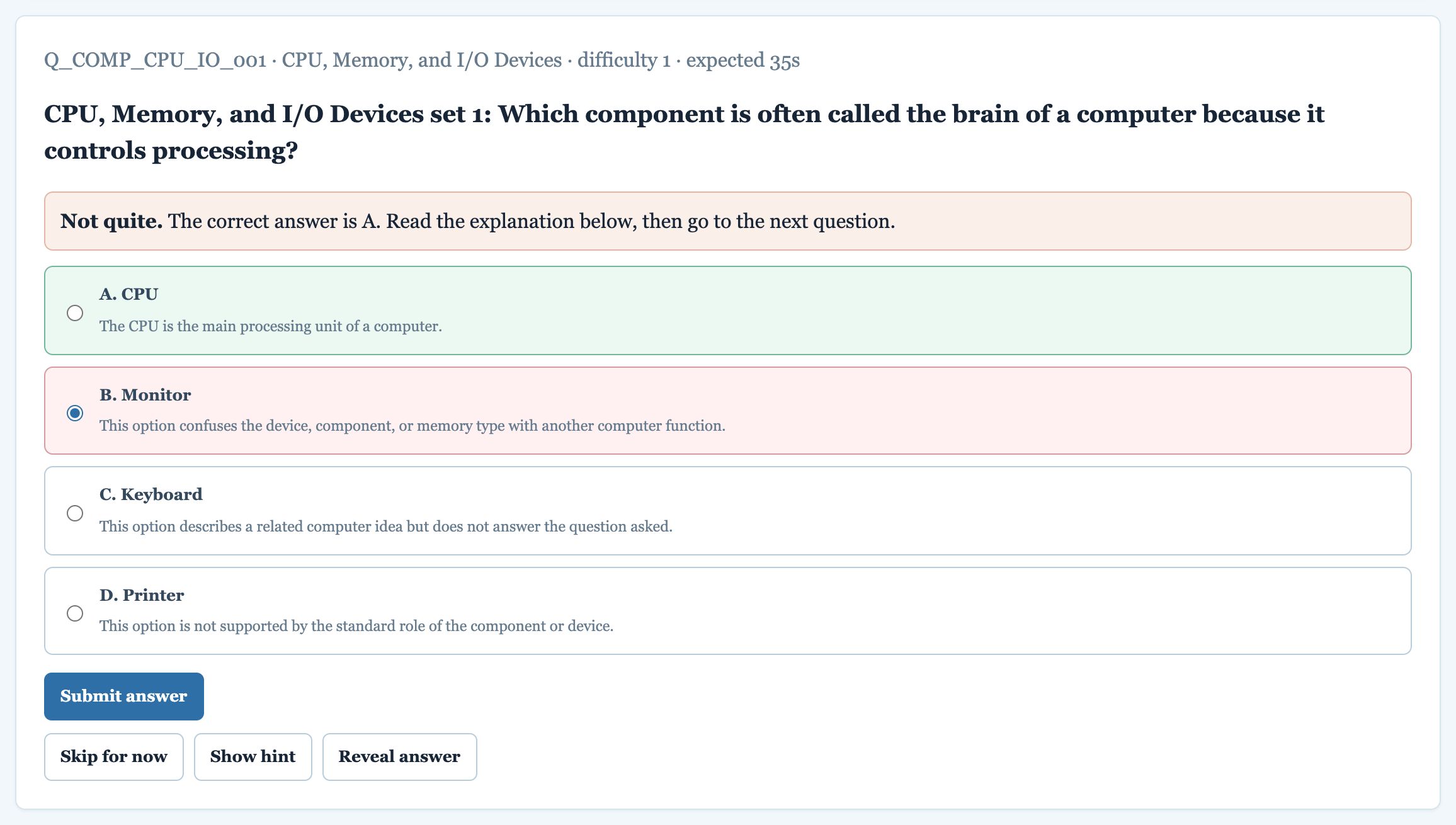
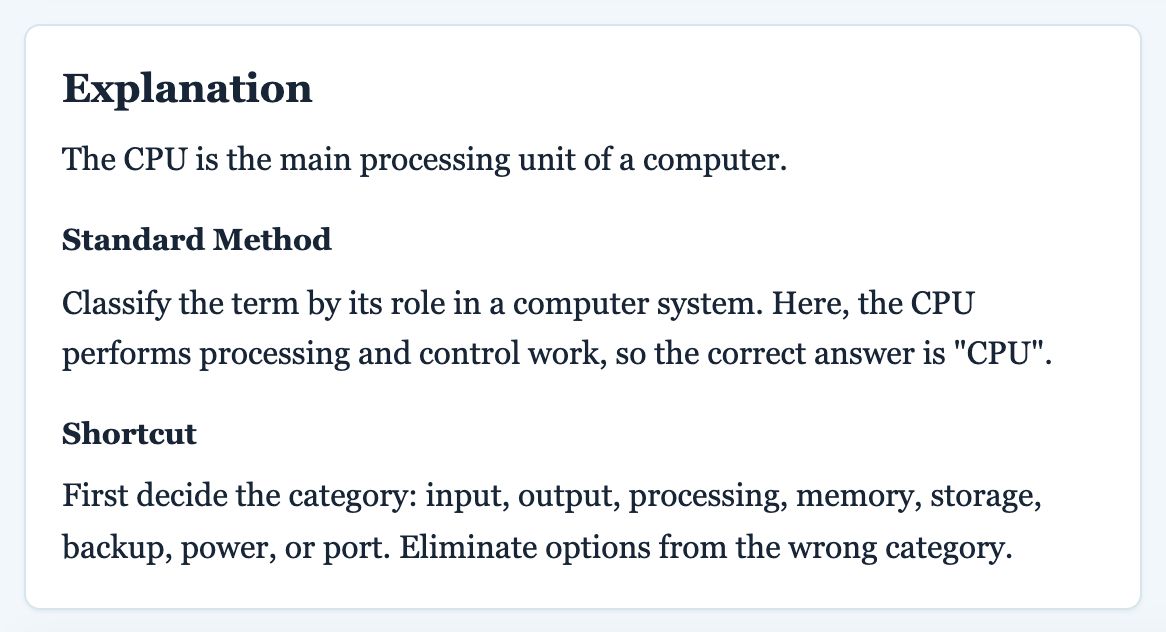
When you have read it, press Next question.
The last question
On the last question of any session, a Last question box shows how many questions you have answered and how many are still unanswered, with a button to finish. Use Previous to go back to anything you skipped, or finish straight away.

Practice mode and test mode compared
| Practice mode | Test mode (tests, mocks, diagnostic) | |
|---|---|---|
| Timer | None (except Timed Drill) | Countdown timer shown in a yellow bar |
| Hints and Reveal answer | Available | Hidden |
| Explanations | Right after each answer | Only after you submit the whole test |
| Marking | Not negatively marked | Exam marking, including negative marks for wrong answers |
7. Practice
The Practice page offers five ways to practise. Each starts a short session of 10 to 30 questions. The first box on the page, Study one topic, is where you learn the syllabus topic by topic.
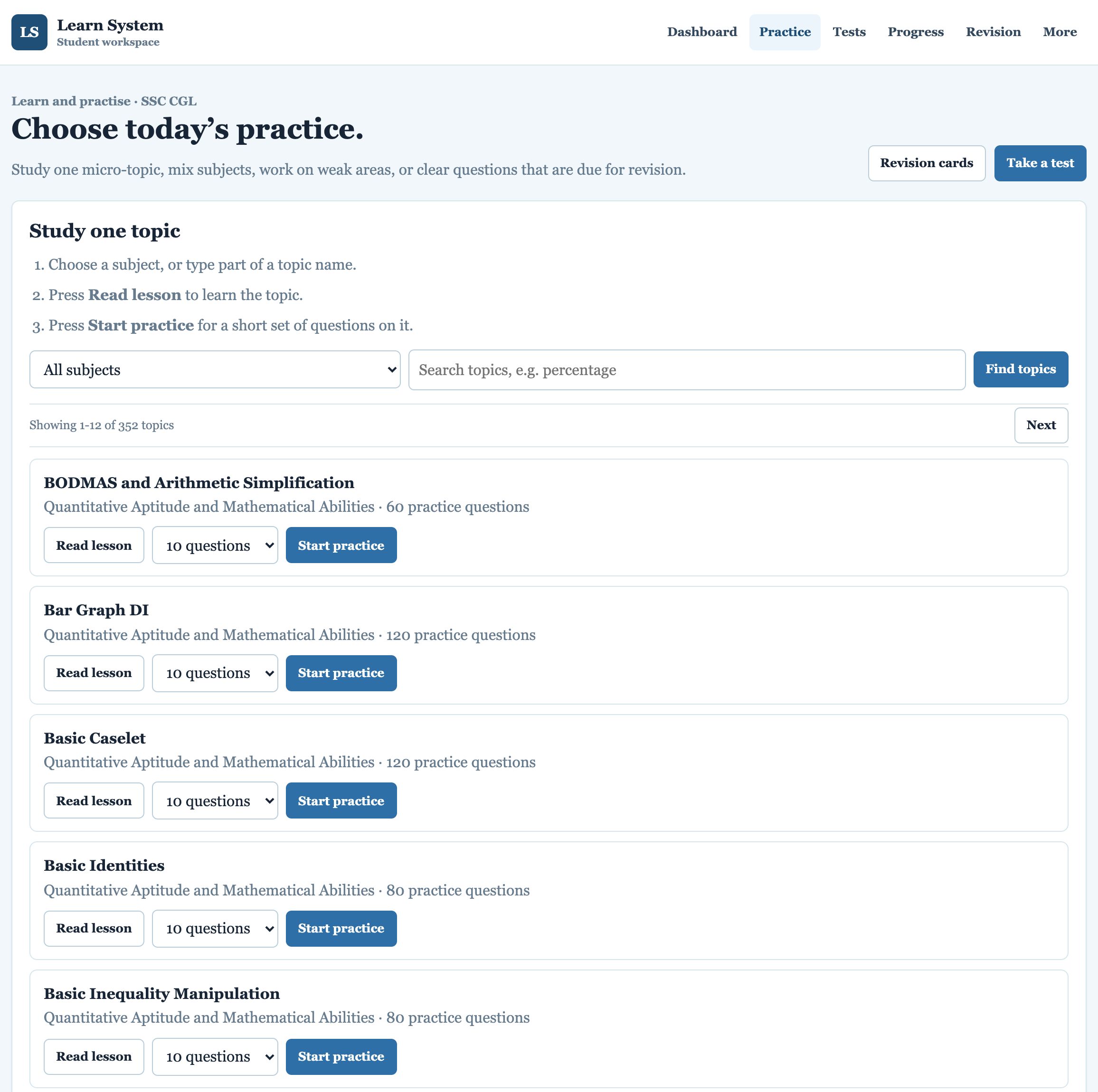
Study one topic
The syllabus is divided into more than 350 small topics (for example BODMAS and Arithmetic Simplification or Reverse Percentage).
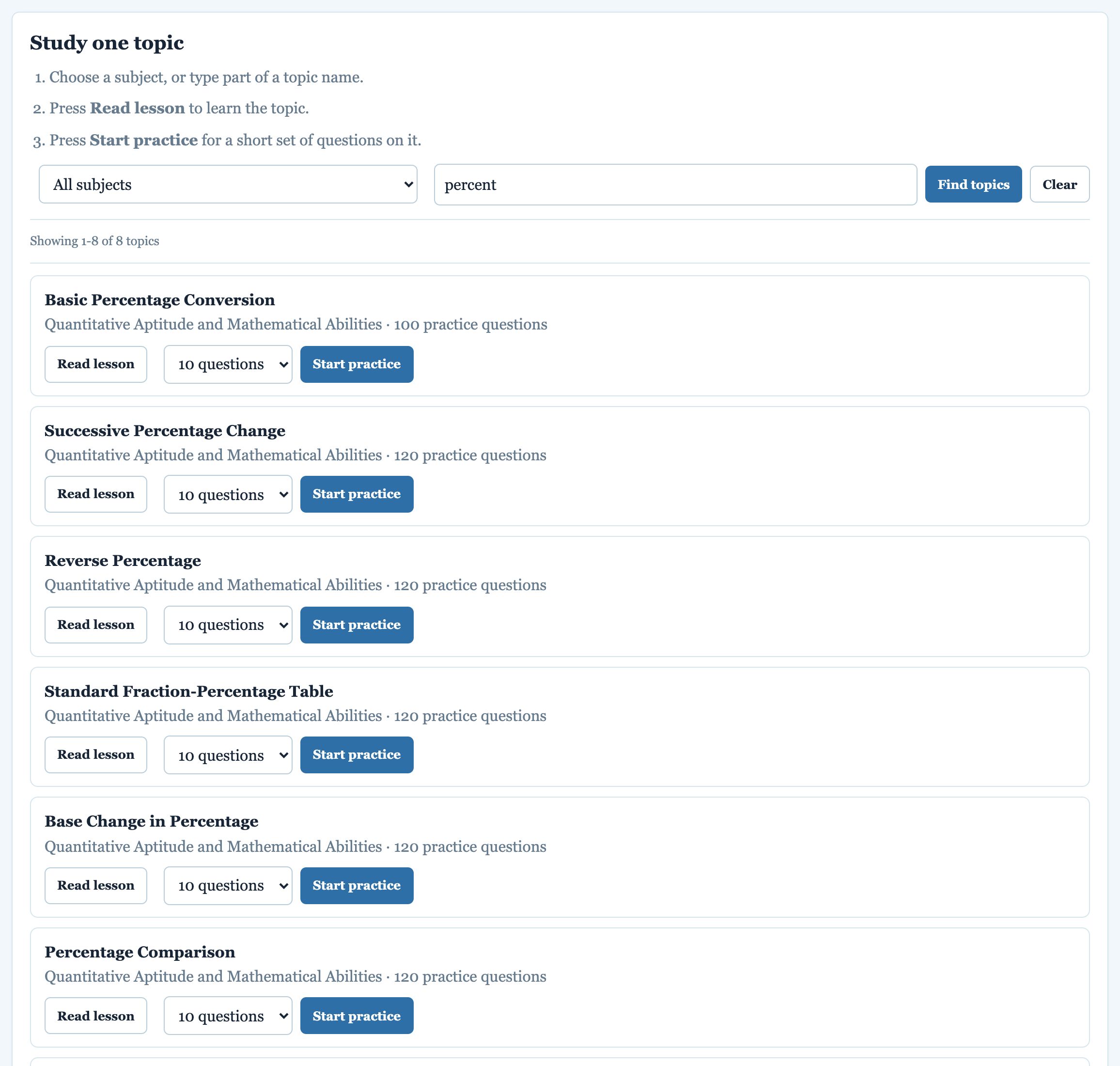
- Choose a subject, or type part of a topic name in the search box (for example percent), and press Find topics.
- Each topic appears as a card showing its subject and how many practice questions it has.
- Press Read lesson to learn the topic first.
- Choose 10, 15 or 20 questions and press Start practice.
Twelve topics are shown at a time; use Next and Previous to see more, and Clear to start a new search.
Which practice should I choose?
| Mode | Best for | How it works |
|---|---|---|
| Study one topic | Learning one topic properly | Find a topic by subject or search, read its lesson, then practise 10/15/20 questions on it. |
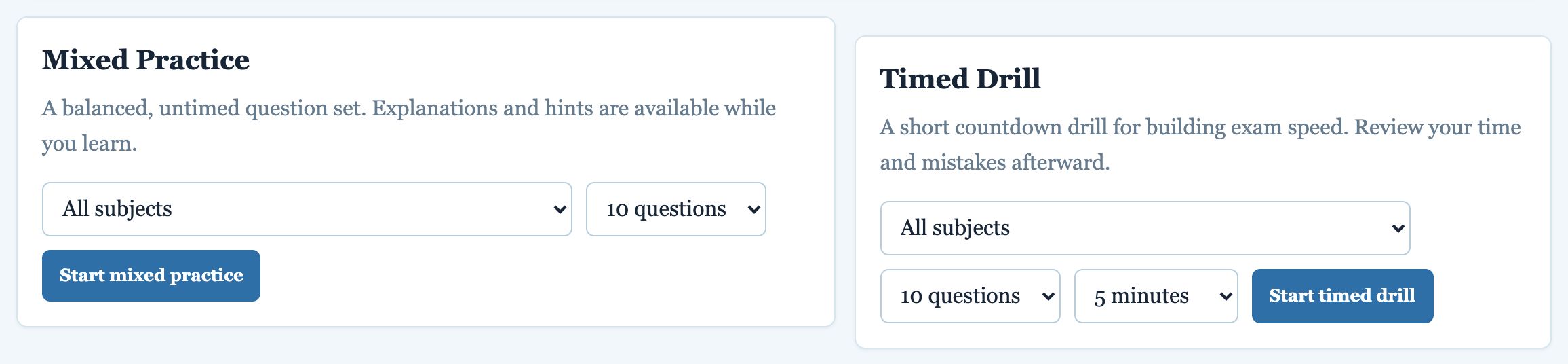
| Mixed Practice | General daily practice | Untimed, balanced set from one or all subjects. Hints and explanations available. Choose subject and 10/20/30 questions. |
| Timed Drill | Building exam speed | A short countdown drill (5/10/15 minutes). Review your time and mistakes afterwards. |
| Weakness Practice | Fixing weak areas | Automatically built from your weakest topics and question types. Recently seen questions are avoided where possible. |
| Spaced Revision | Not forgetting | Questions you attempted come back after 1, 3, 7 and 21 days. Wrong, skipped and unanswered questions come first. |
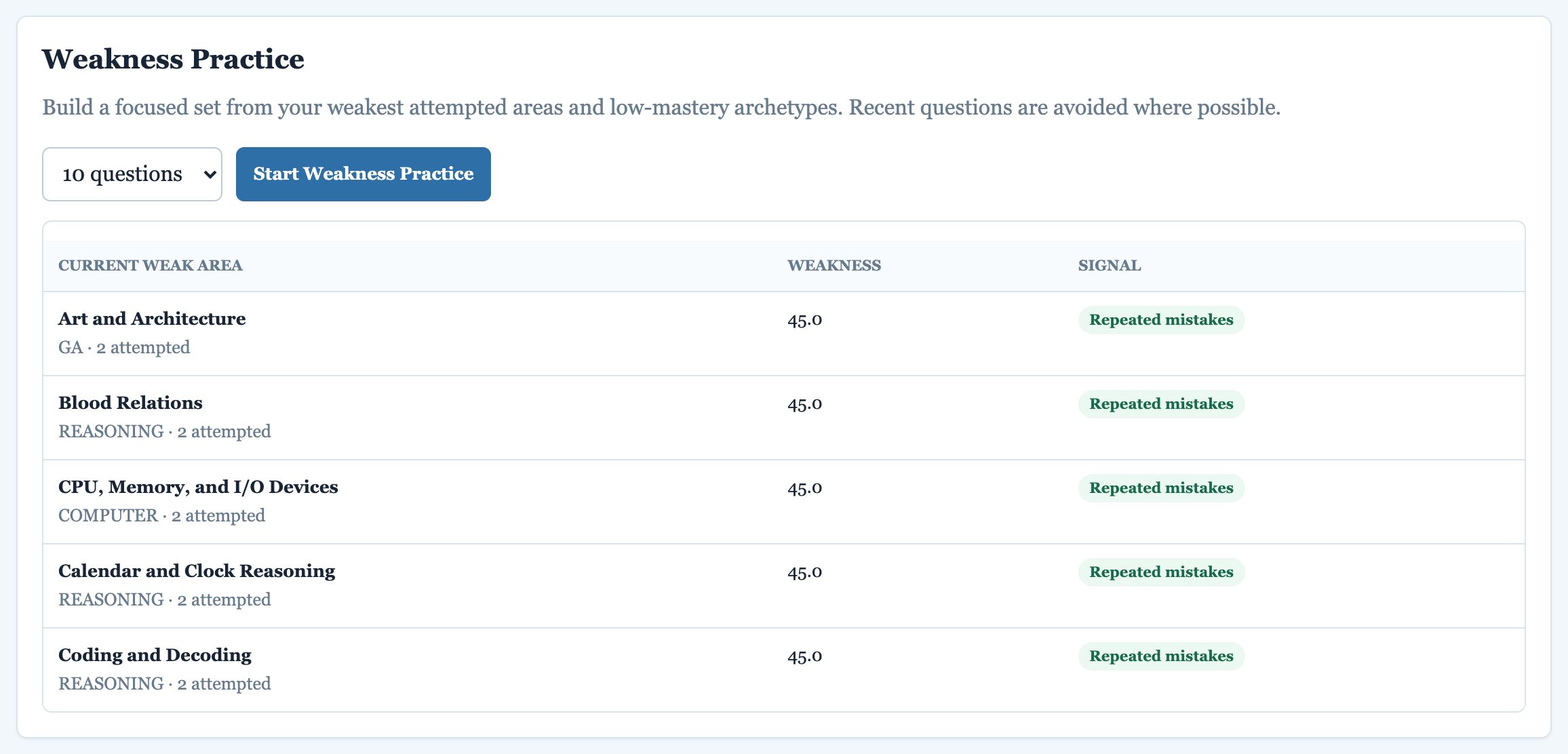
Weakness Practice
Shows your current weak areas with a weakness score and the signal behind it (for example Repeated mistakes). Choose the number of questions and press Start Weakness Practice.
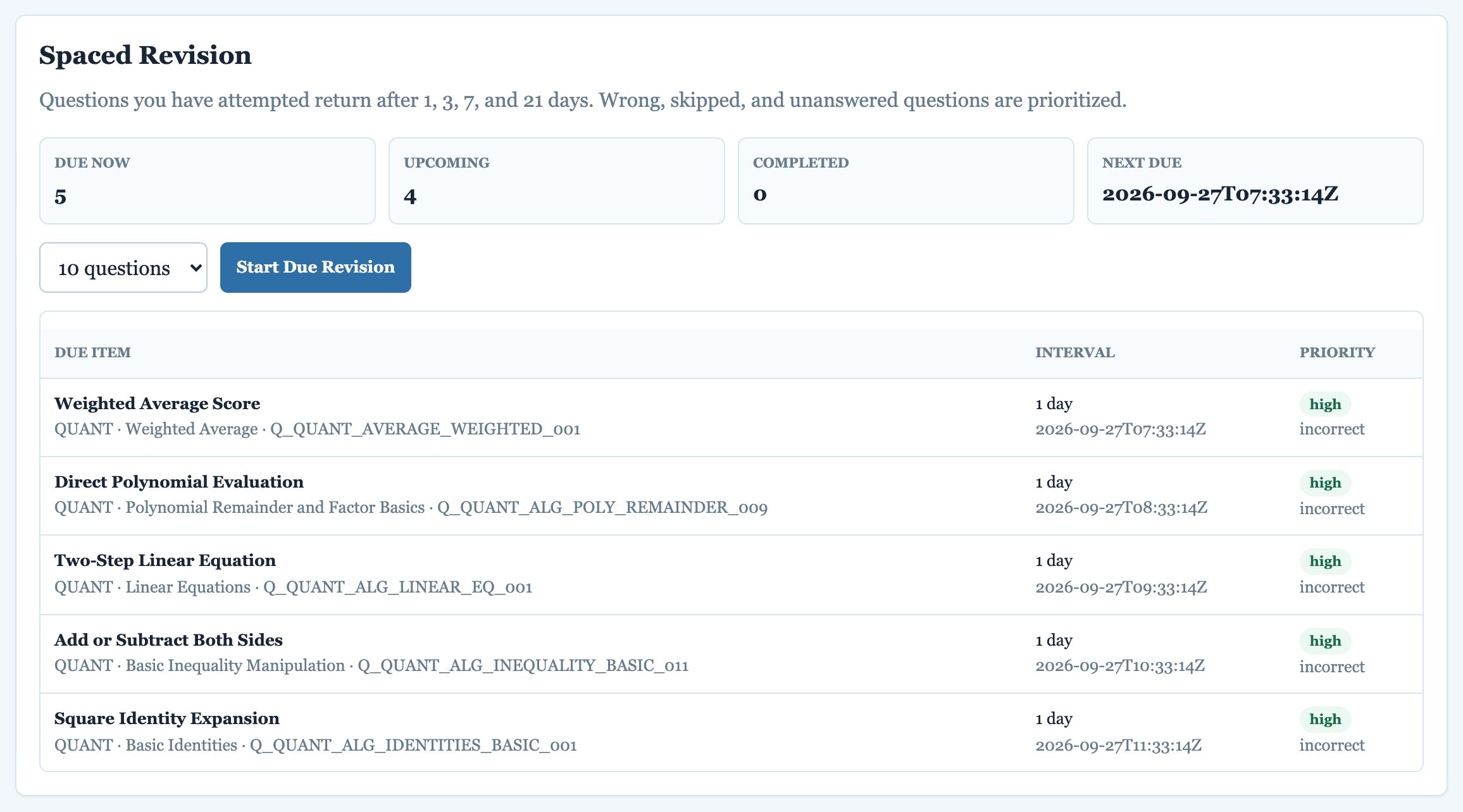
Spaced Revision
Shows how many questions are due now, upcoming and completed, and lists each due question with its interval and priority. Press Start Due Revision to clear them. Try to keep Due now close to zero.
8. Lessons
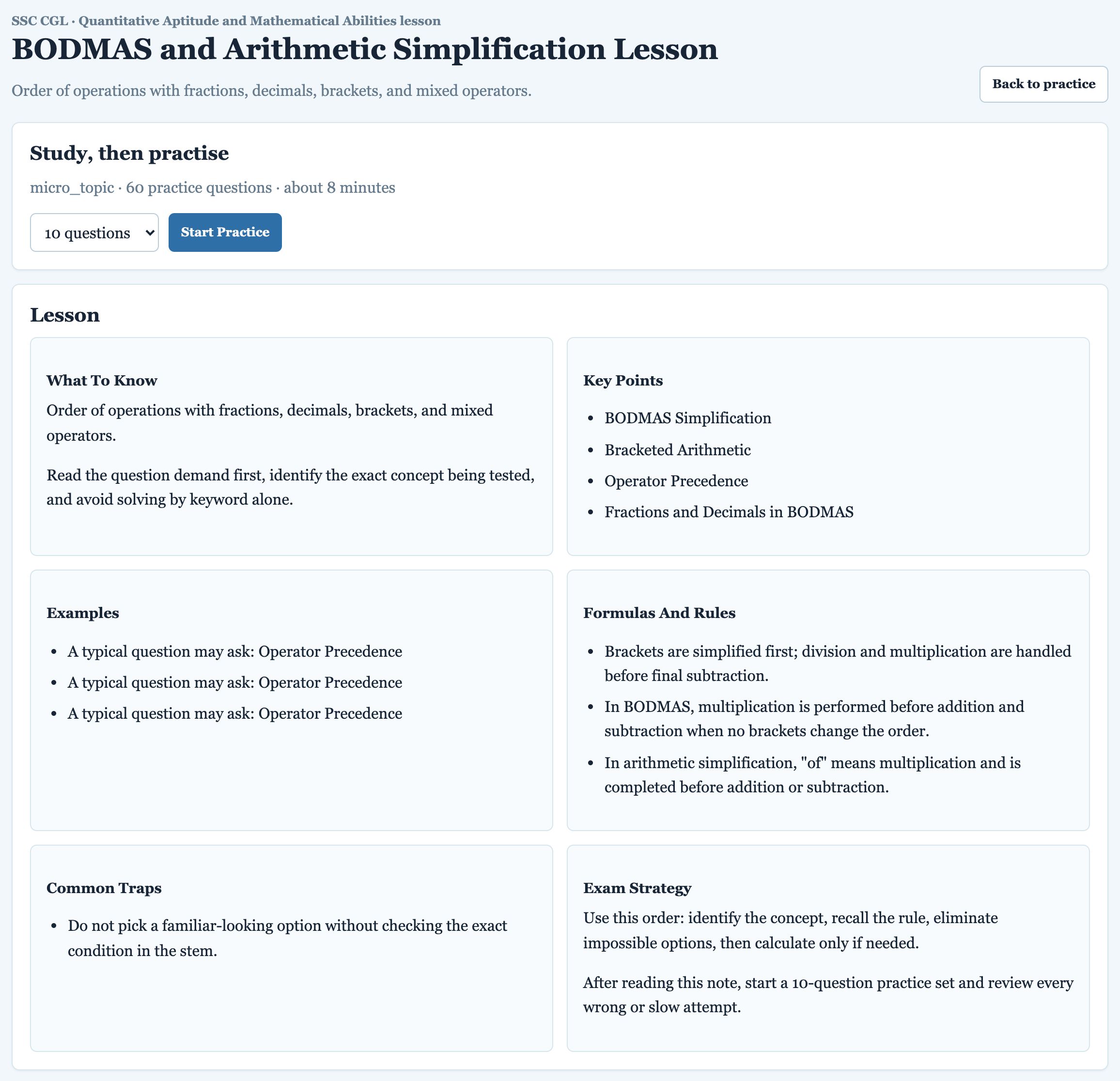
Every micro-topic has a short lesson. Open it from Practice → Study one topic → Read lesson, from a Study link in Weak Areas, or from Open lesson on a revision card. Each lesson has six short parts: What To Know, Key Points, Examples, Formulas And Rules, Common Traps and Exam Strategy. The Study, then practise box at the top shows how many practice questions the topic has and lets you start a set straight away.
9. After a session: results and retests
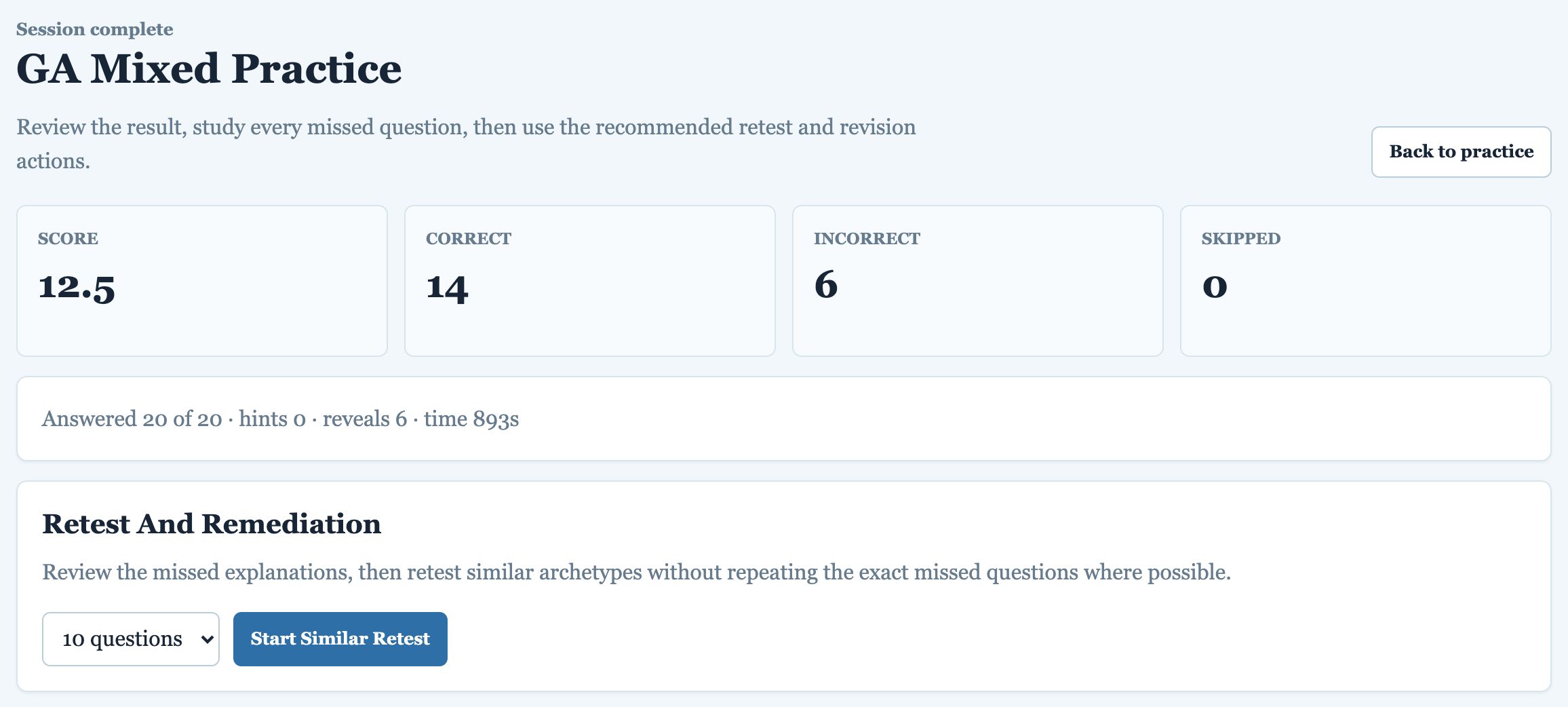
When you press Finish and see results (or Submit test and see results) and confirm, you see the results page:
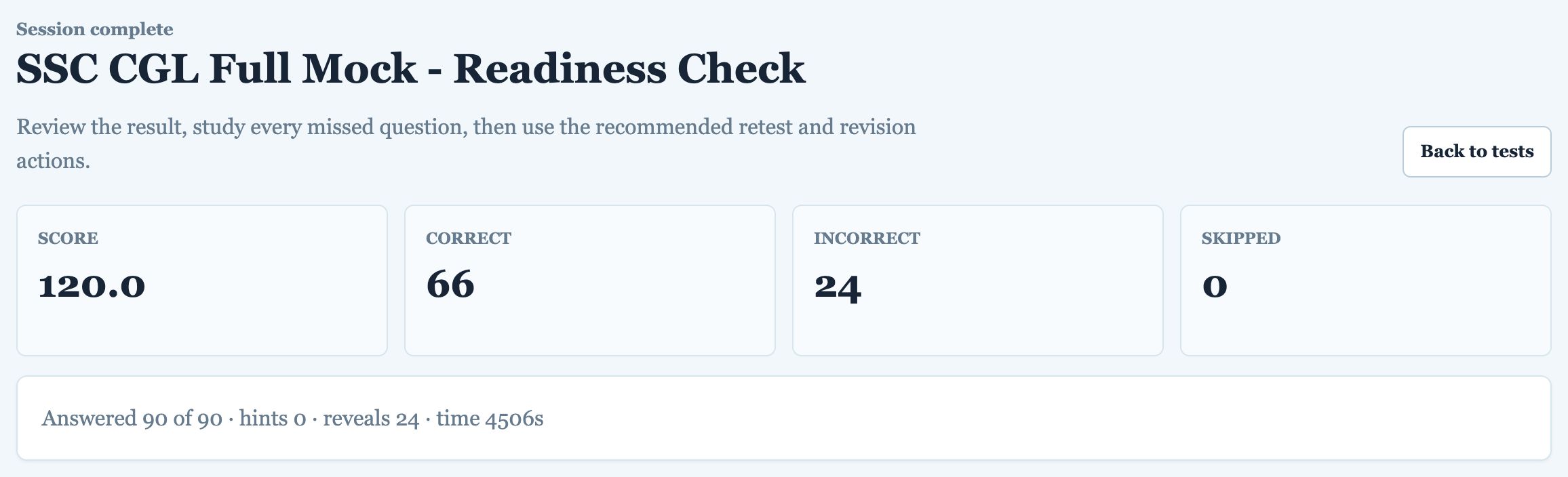
- Score, correct, incorrect, skipped, plus hints used, answers revealed and total time.
- Retest And Remediation: after reviewing your mistakes, press Start Similar Retest to practise similar questions (not the same ones) to check that you have really understood.
- Core Metrics: accuracy, skip rate, completion, expected-time ratio, average time per answer, first-attempt correct and repeated mistakes.
- Mastery: updated mastery by subject and difficulty.
- Weakness And Traps: weak areas, slow areas, high-error traps and confusing distractors (wrong options you chose, and how often).
- Topic Metrics: how you did in each topic of the session.
- Review Queue: every question you got wrong or skipped, with the option you chose. Open a question to read its explanation.
10. Tests and full mocks
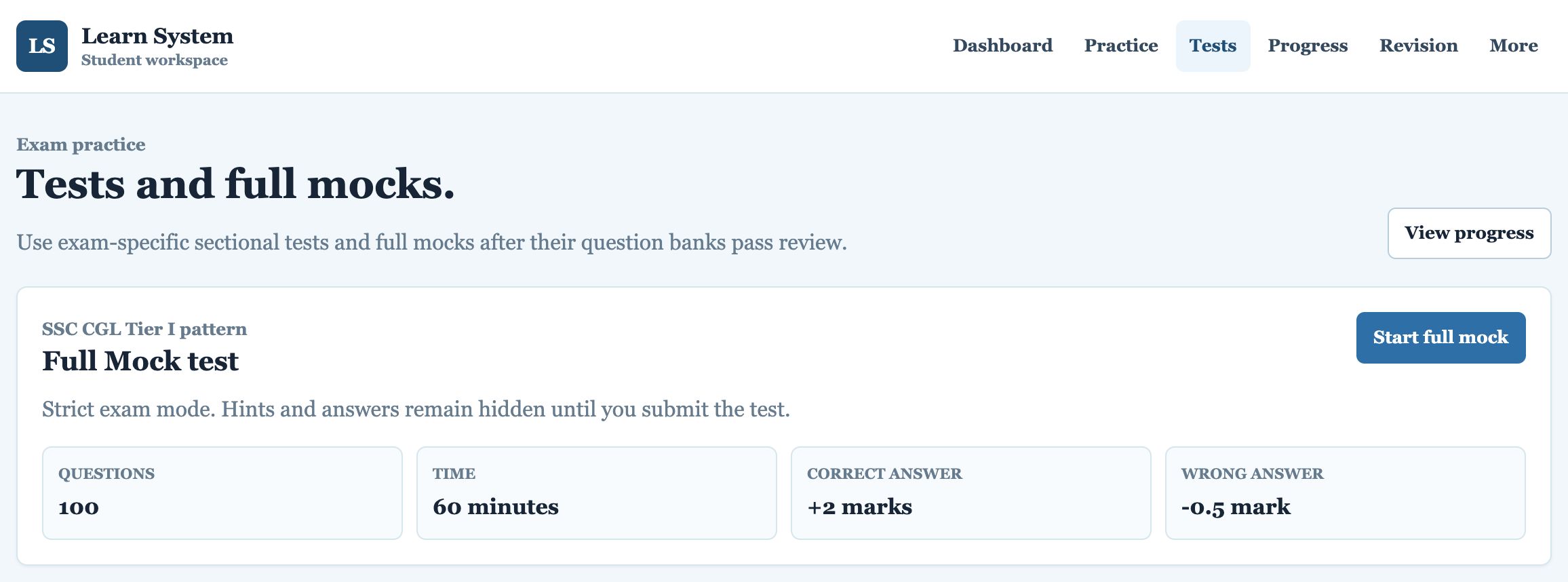
The Tests page lets you practise in real exam conditions. Tests are in strict mode: no hints, no revealed answers, a countdown timer, and exam-style negative marking. Answers and explanations appear only after you submit.
Full mock test (Tier I pattern)
| Questions | Time | Correct answer | Wrong answer |
|---|---|---|---|
| 100 | 60 minutes | +2 marks | −0.5 mark |
Press Start full mock. Set aside a quiet, uninterrupted hour, exactly like the real exam.
Sectional tests
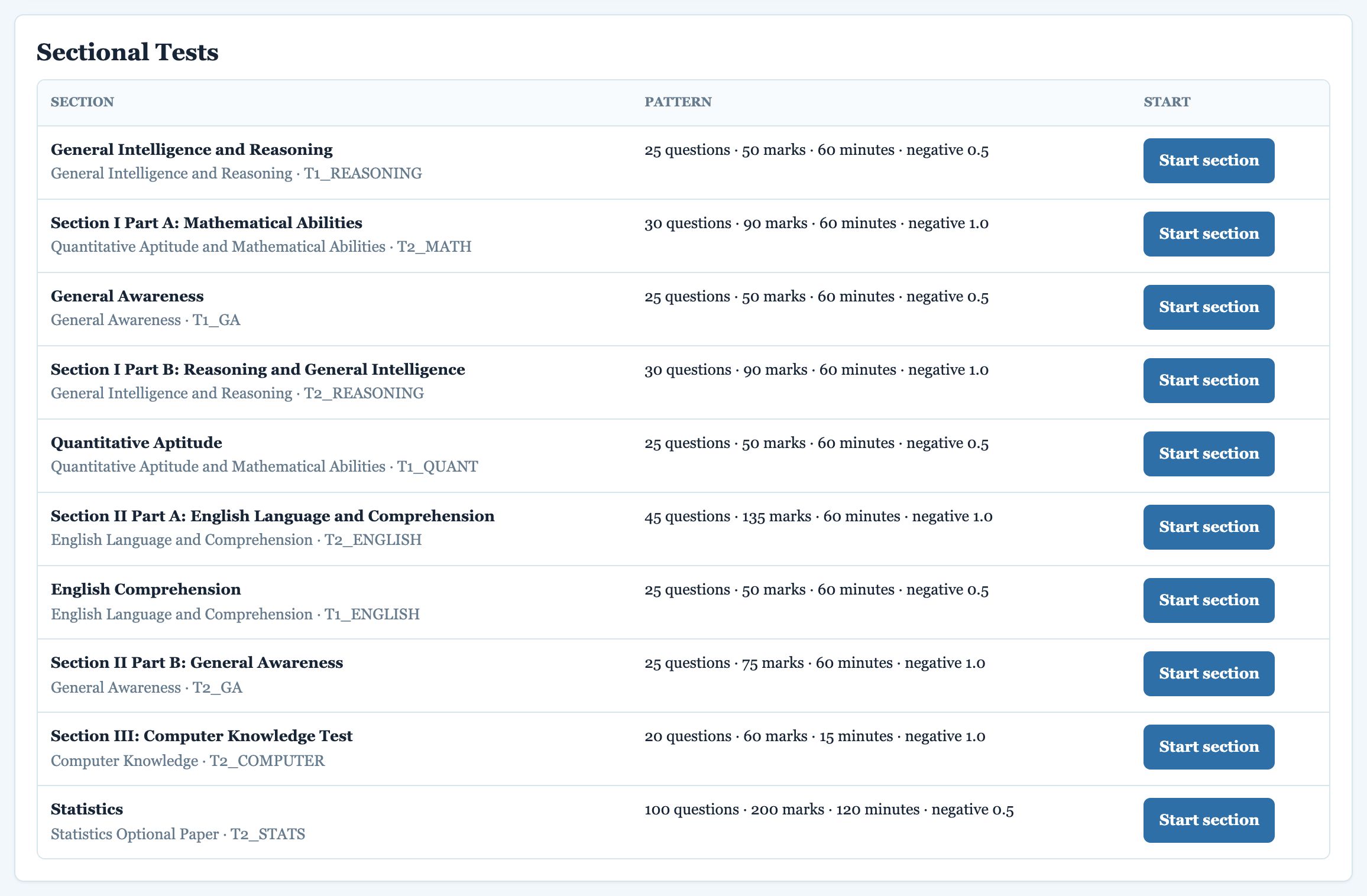
Sectional tests cover one section at a time, following the Tier I and Tier II patterns. The table shows the number of questions, marks, time and negative marking for each. Press Start section next to the one you want.
During a test
- The remaining time is shown in a yellow bar. The timer keeps running while the session is open, even if you move to another page.
- Select an option and press Save answer, or Skip for now. Use Previous/Next to move around and change answers.
- Press Submit test and see results and confirm. Unanswered questions score zero, and wrong answers lose marks, so do not guess blindly.
- Pause (timer keeps running) lets you leave and come back, but the test clock does not stop.
Reviewing past tests
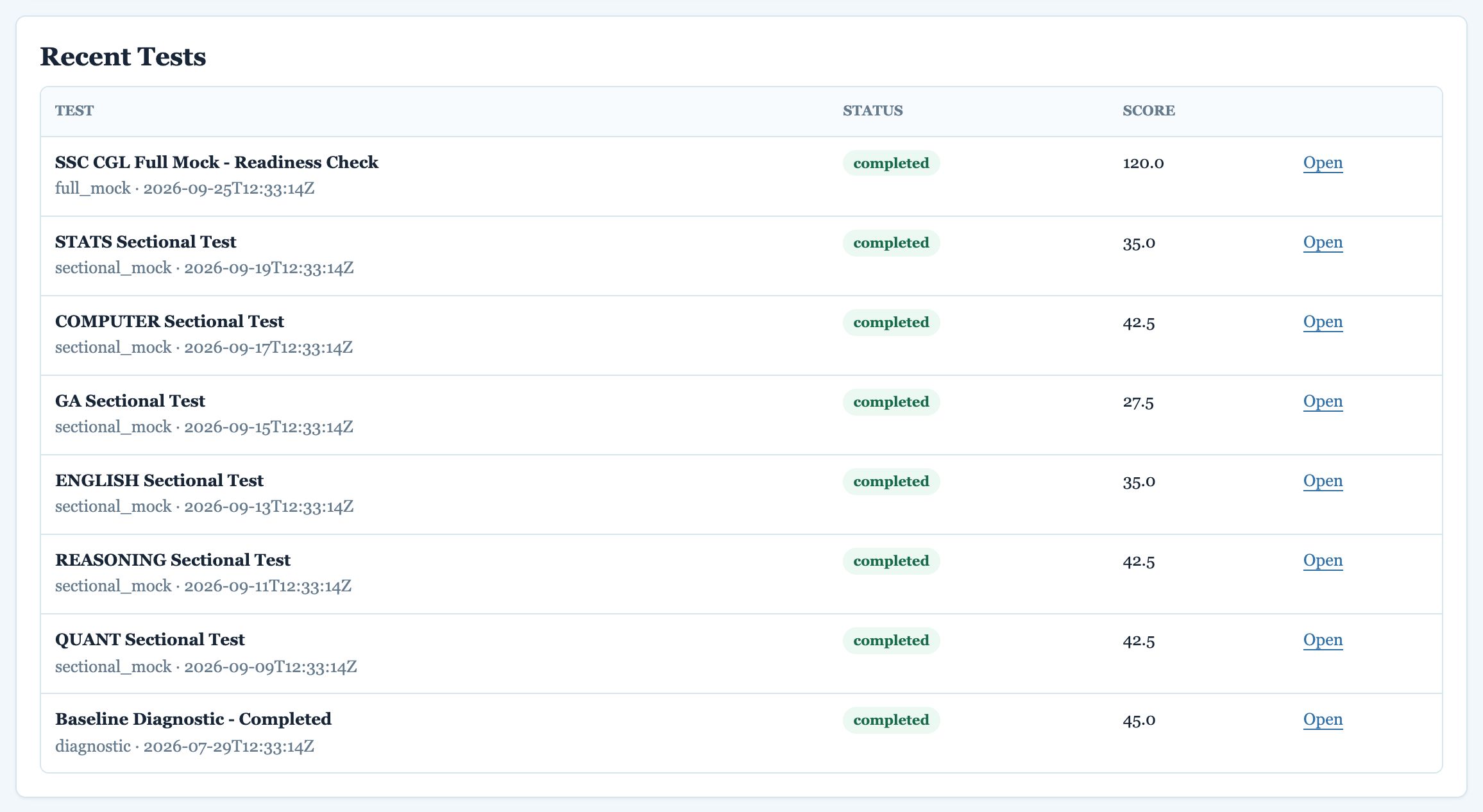
Recent Tests lists every test you have taken with its score. Press Open to see the full result: score, accuracy, subject and difficulty breakdown, weak areas and traps, and the review queue of missed questions. You can start a similar retest from there.
11. Progress and analysis
The Progress page is your detailed report card. Use the subject filter at the top to see everything for one subject, or Clear to see all.
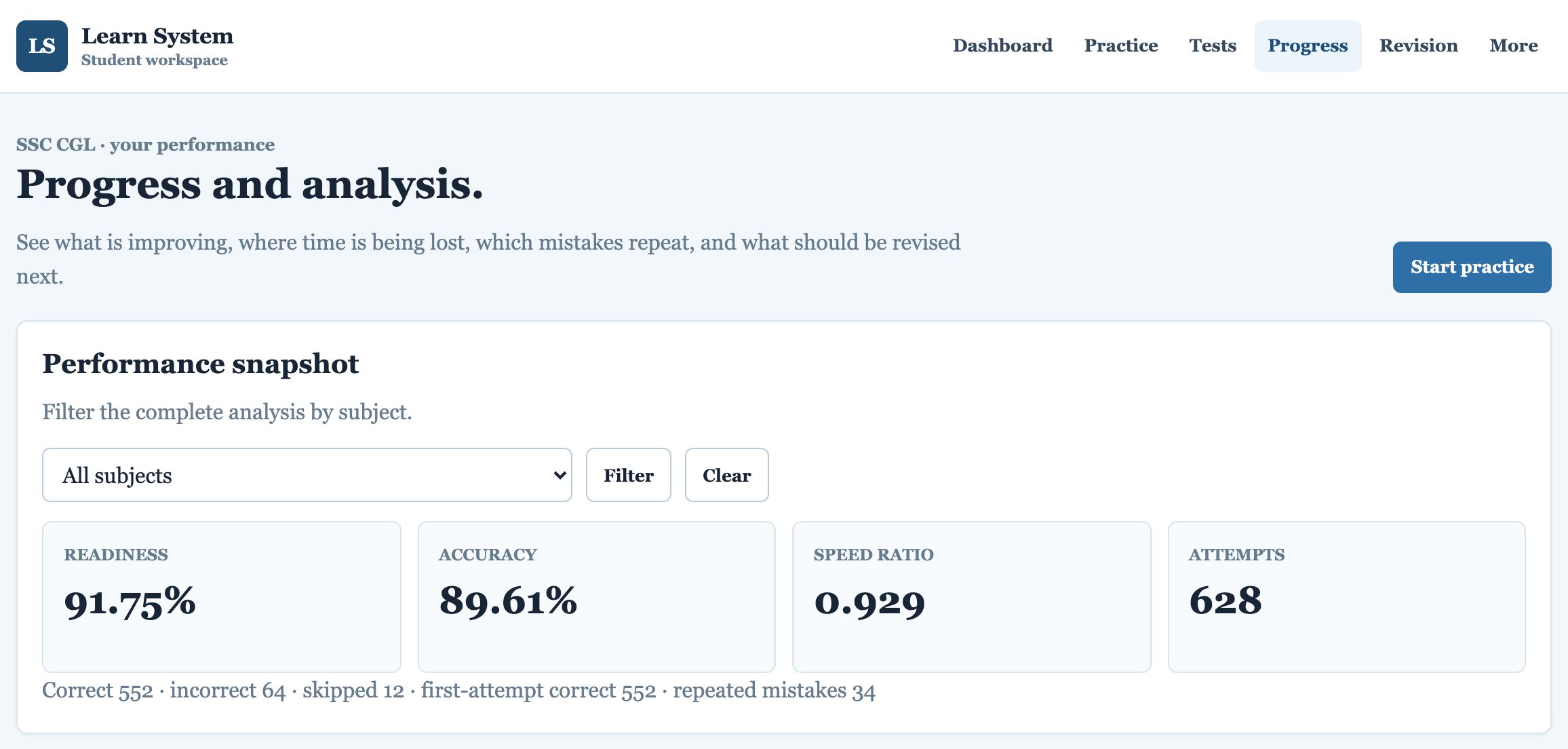
Performance snapshot
| Measure | Meaning |
|---|---|
| Readiness | Overall exam readiness (see below). |
| Accuracy | Percentage of attempted questions answered correctly. |
| Speed ratio | Your time ÷ the expected time. Below 1.0 is faster than expected; above 1.0 is slower. |
| Attempts | Total questions attempted, with correct, incorrect, skipped, first-attempt correct and repeated mistakes. |
Sections of the Progress page
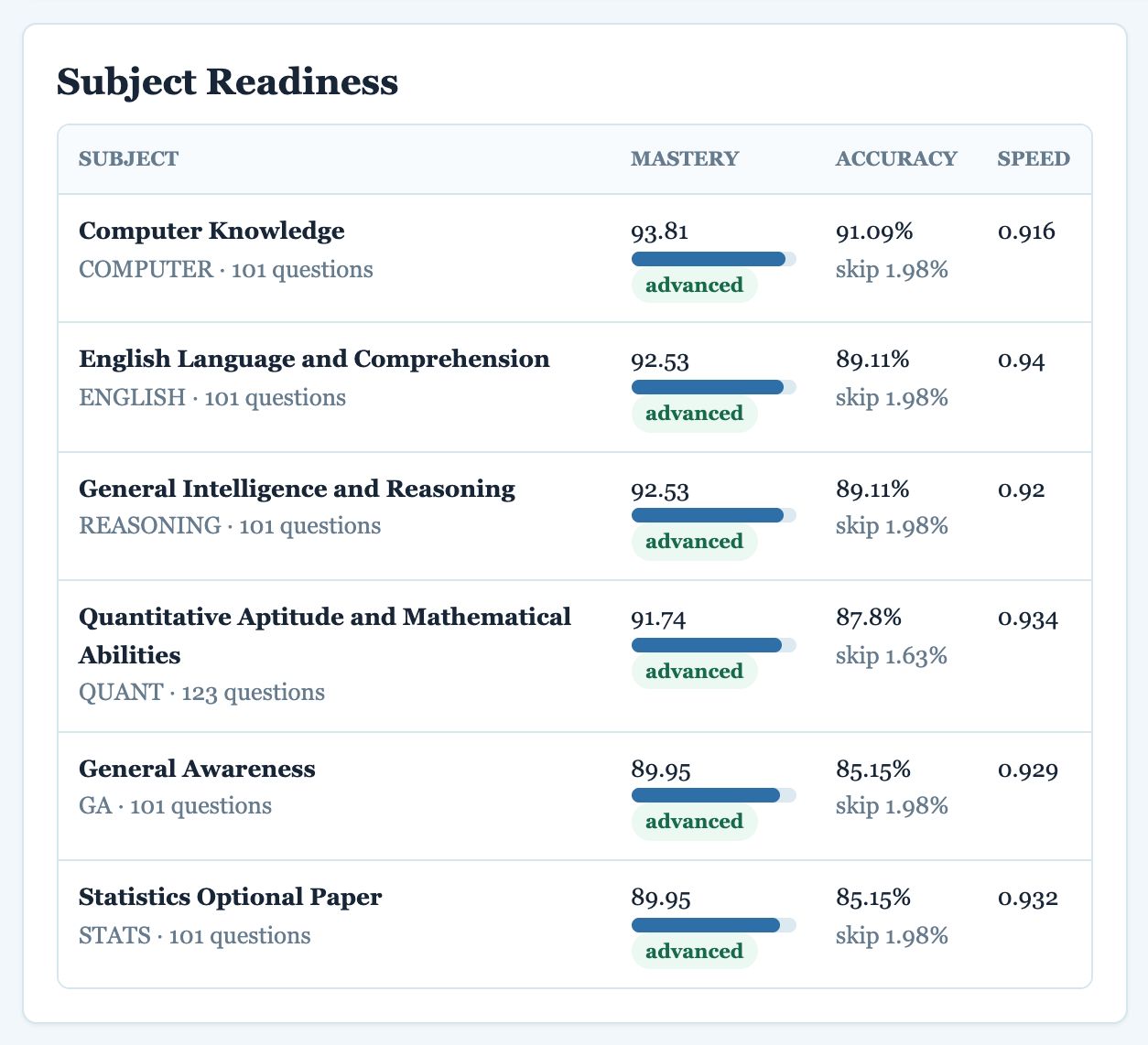
- Subject Readiness: mastery, band, accuracy, skip rate and speed per subject.
- Difficulty Readiness: how you do at each difficulty level in each subject.
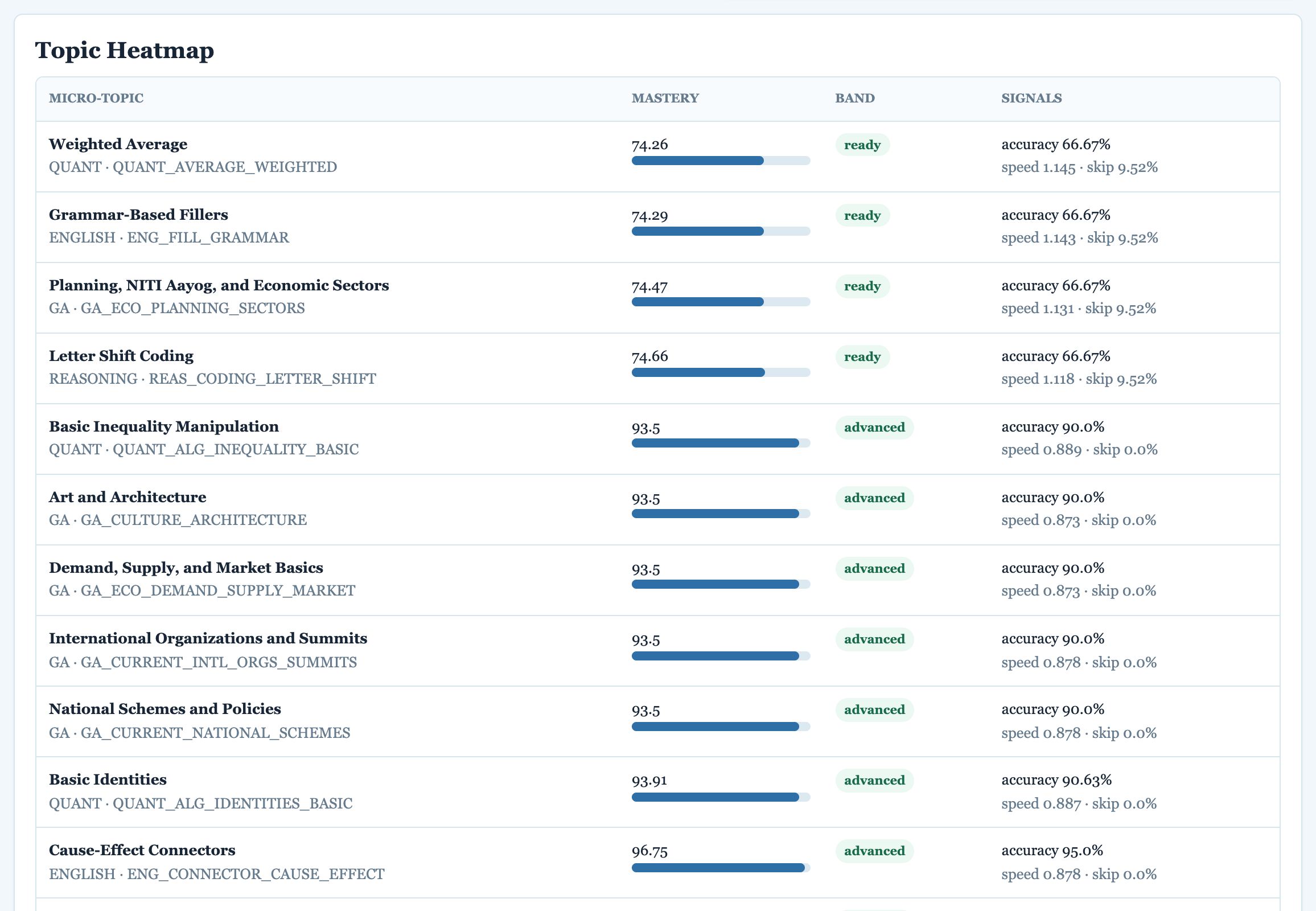
- Topic Heatmap: every micro-topic you have attempted, weakest first, with accuracy, speed and skip signals.
- Accuracy Vs Speed: where you are accurate but slow, or fast but careless.
- Archetype Readiness: performance by question type (the pattern of the question).
- High-Error Traps: question types where you repeatedly fall for the same wrong option.
- Question Revision Pressure: how much spaced revision is building up.
How readiness and bands are worked out
Mastery for a subject or topic is a score out of 100 that combines four things: accuracy (the largest part), coverage (how much of the area you have answered), speed compared with the expected time, and first-attempt correctness. The score is placed in a band:
| Band | Mastery score | What it means |
|---|---|---|
| Advanced | 85 and above | Strong. Maintain with revision and mocks. |
| Ready | 70 to 84 | Exam-ready level. Polish speed and traps. |
| Developing | 50 to 69 | Improving. Keep practising and read explanations. |
| Weak | Below 50 | Needs attention. Read the lesson and use Weakness Practice. |
12. Revision cards
Revision in the top menu opens quick-recall cards: short facts, formulas, rules, traps and patterns from every subject. Cards train your memory so that you recall key points instantly in the exam.
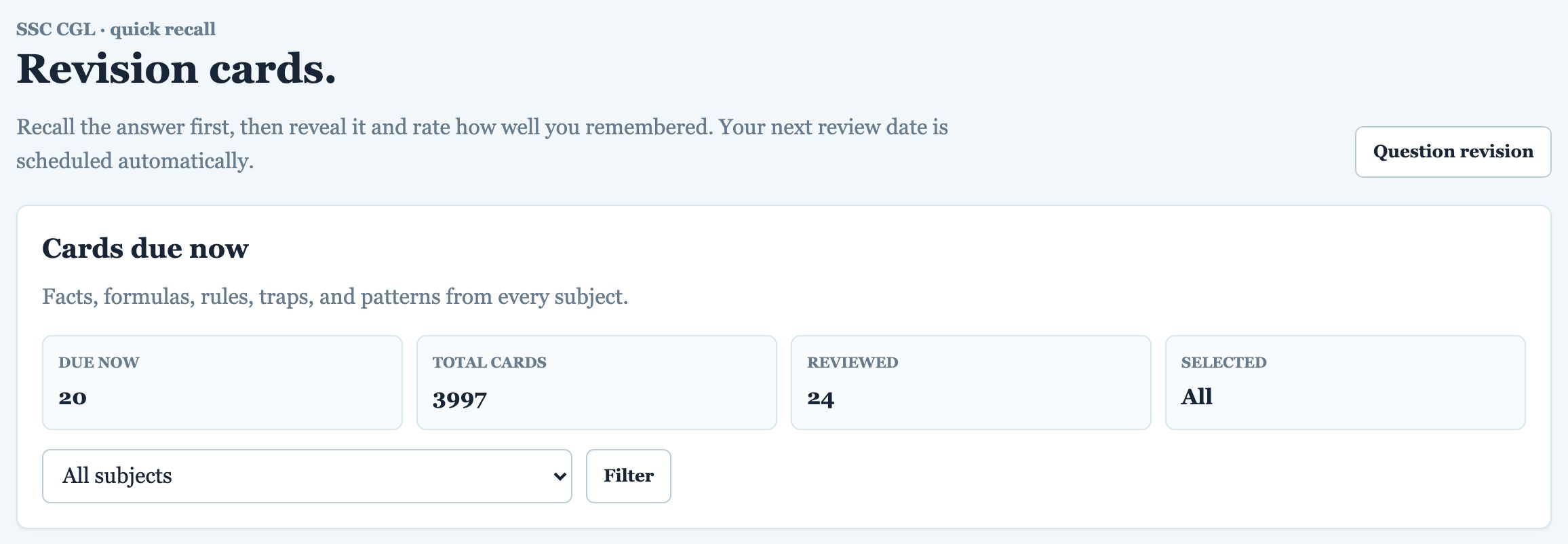
- Optionally choose a subject and press Filter.
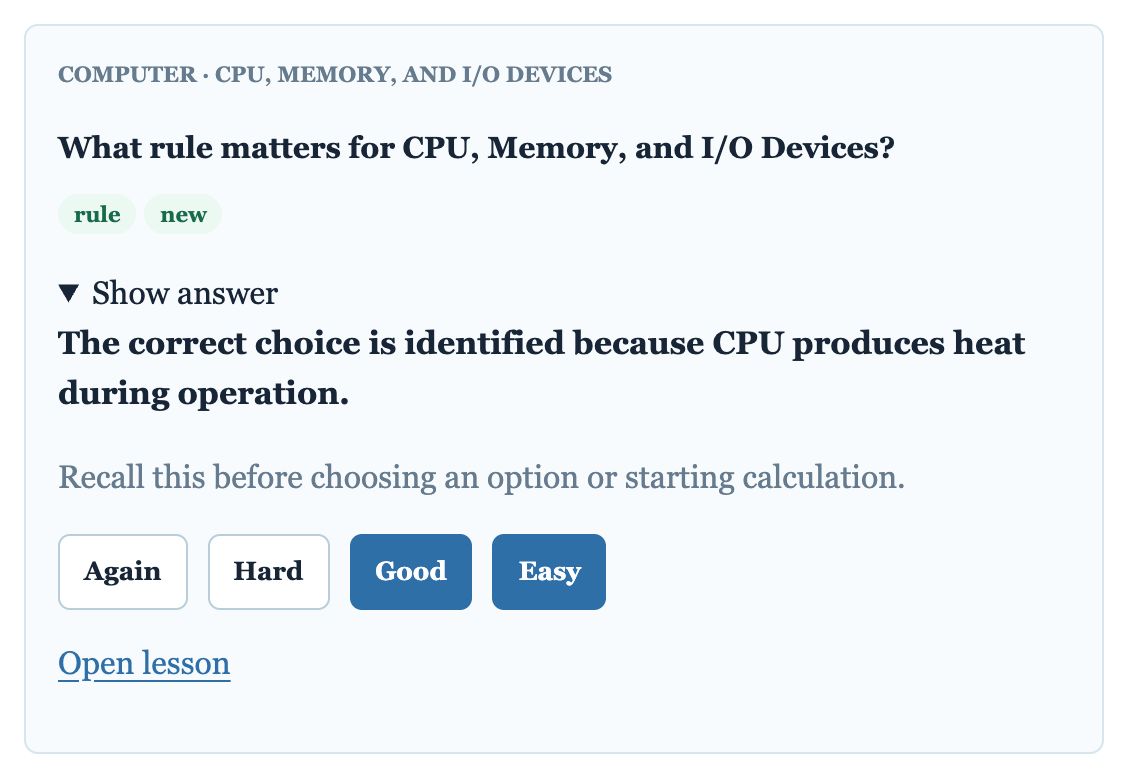
- Read the card’s question and try to recall the answer in your head first.
- Press Show answer and compare.
- Rate how well you remembered. The card is scheduled to return:
| Rating | Use when | Card returns in |
|---|---|---|
| Again | You did not remember it | 1 day |
| Hard | You remembered with difficulty | 3 days |
| Good | You remembered correctly | 7 days |
| Easy | You knew it instantly | 21 days |
13. Notifications
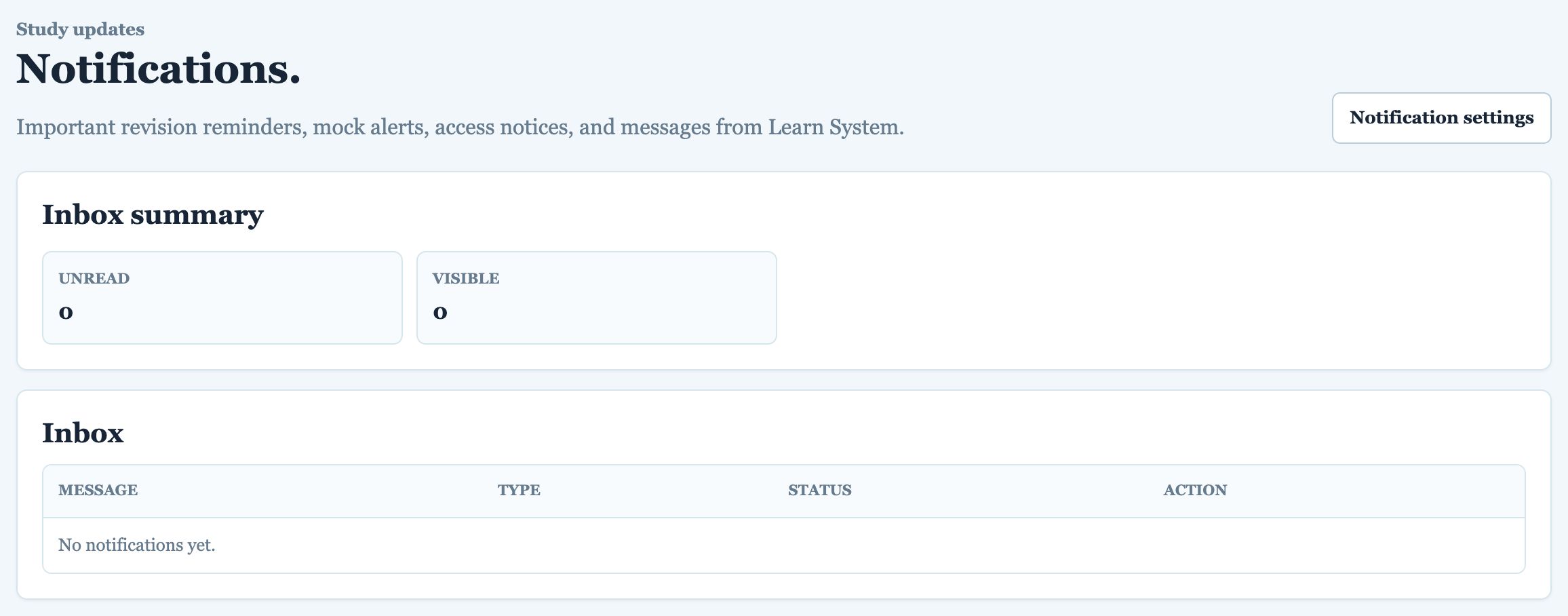
More → Notifications shows revision reminders, mock alerts, access notices and messages from Learn System, with unread and visible counts. Mark messages as read or dismiss them. Notification settings takes you to your preferences in My Account.
14. My Account
More → My Account holds your profile and settings.
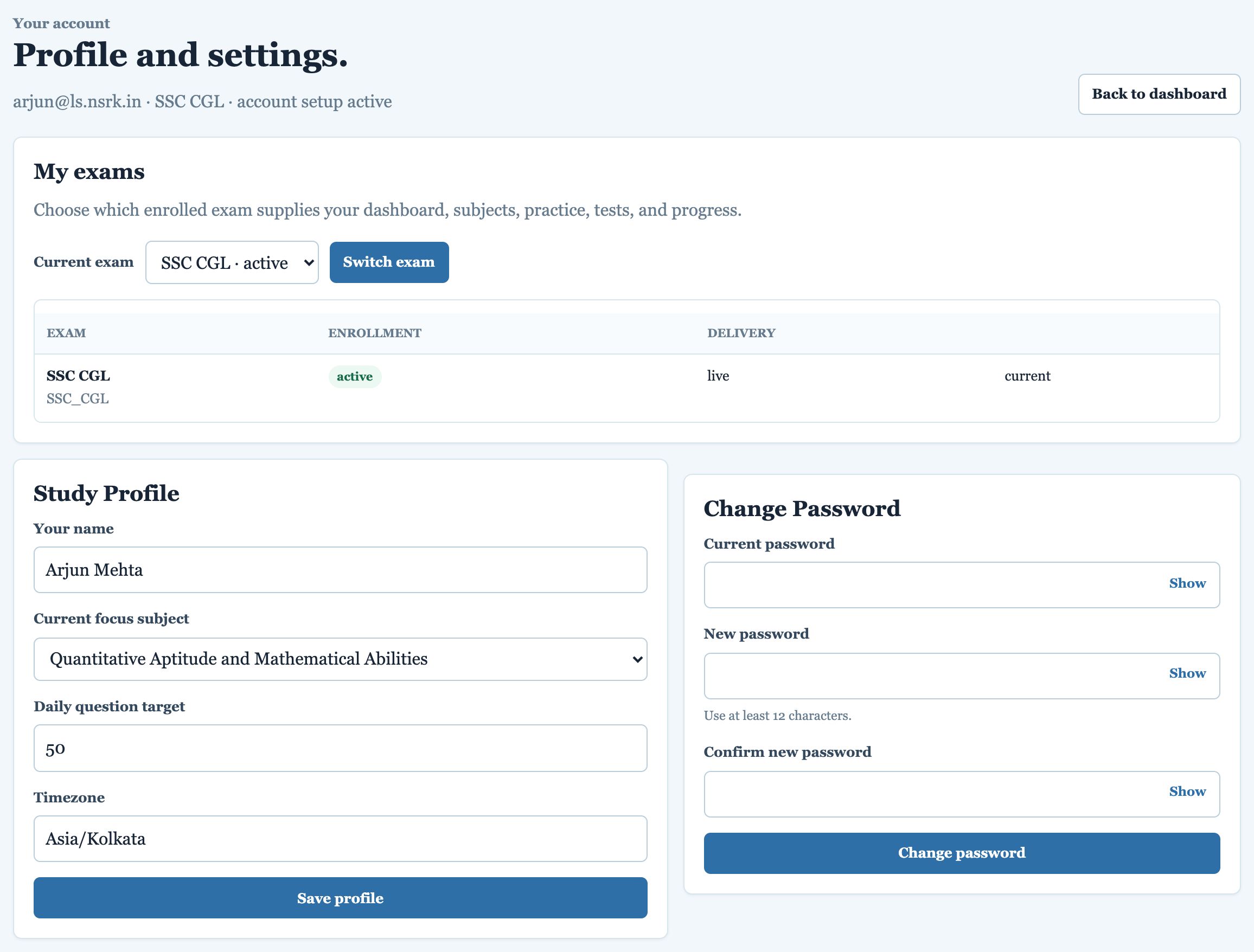
| Section | What you can do |
|---|---|
| My exams | See the exams you are enrolled in and switch which one drives your dashboard, practice, tests and progress. |
| Study Profile | Change your name, current focus subject, daily question target and timezone. Press Save profile. |
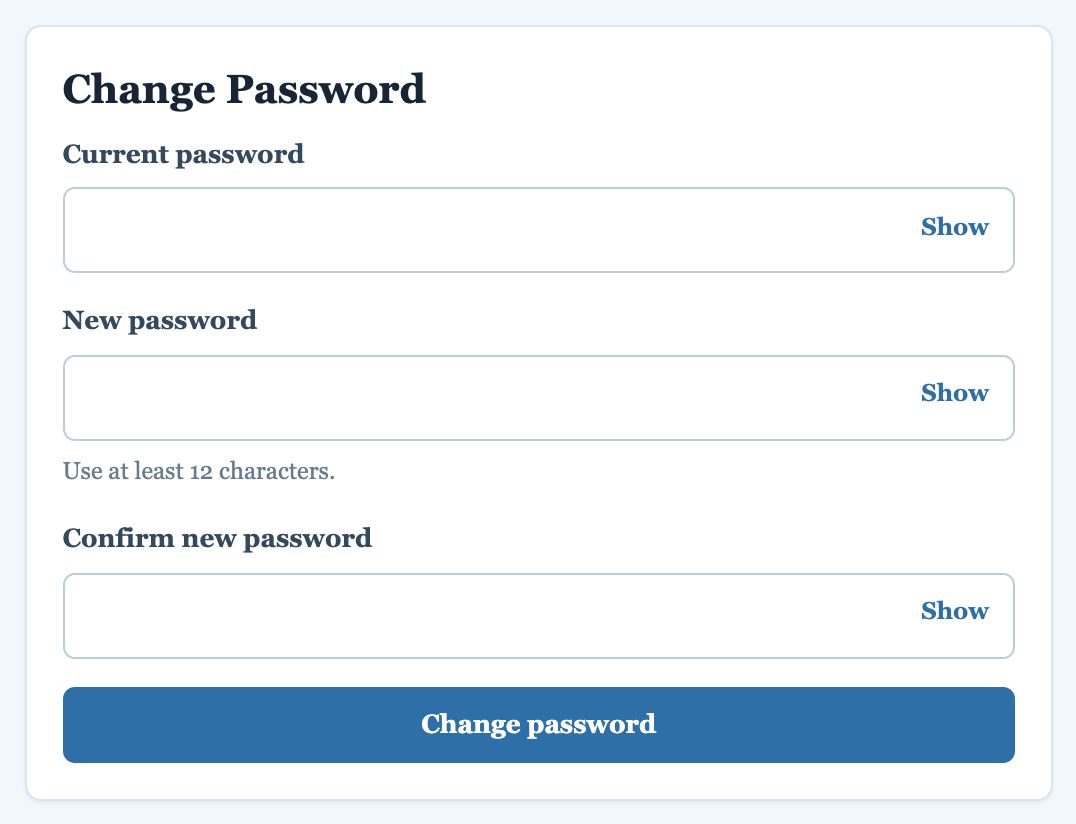
| Change Password | Enter your current password and a new one (at least 12 characters) twice. |
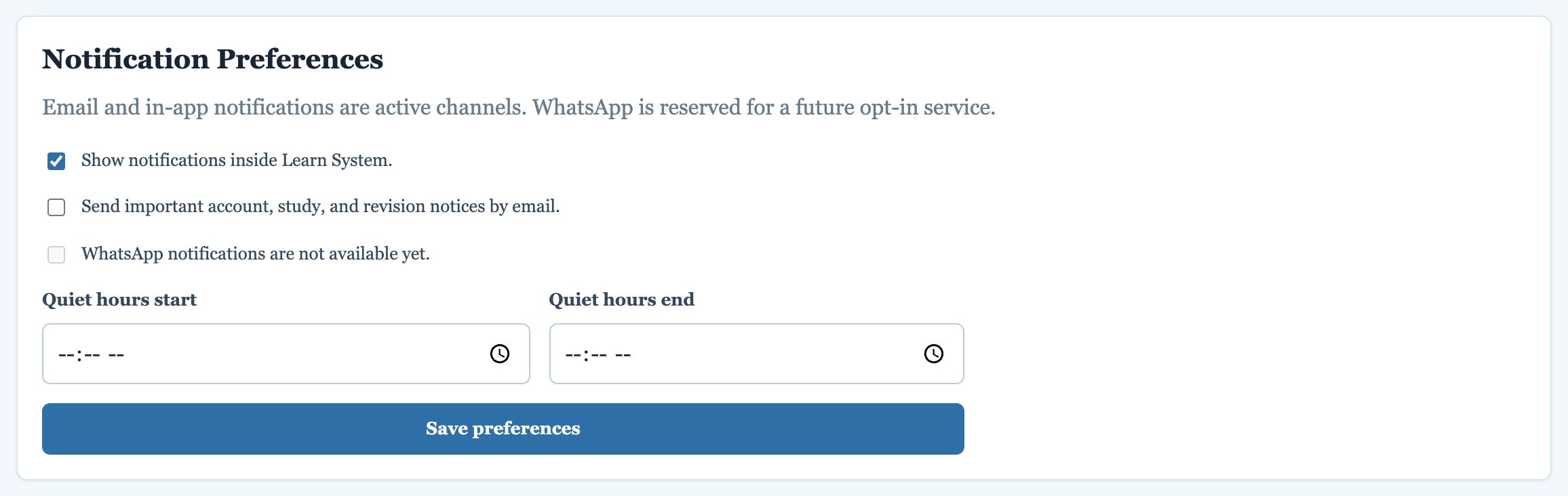
| Notification Preferences | Turn in-app and email notices on or off and set quiet hours. WhatsApp notices are planned for the future. |
| Legal Consent | Review and accept the current terms, privacy, responsible-use and access policies. |
15. A suggested daily routine
- Log in and read the dashboard. Do the Recommended Next Action first.
- Clear due revision (about 10 minutes): Practice → Spaced Revision → Start Due Revision, then Revision cards due today.
- Learn one new topic (about 20 minutes): Practice → Study one topic → Read lesson → Start practice (10 to 15 questions).
- Fix a weak area (about 15 minutes): Weakness Practice, then read every explanation.
- Build speed (about 10 minutes): one Timed Drill.
- Check Progress once a day to see which topics moved.
- Once a week: a sectional test or full mock, followed by a careful review and a similar retest.
Aim to reach your daily target (50 questions by default) every day. Consistency matters more than long sessions.
16. Guide for testers
Thank you for helping test Learn System. Seven fictitious students have been prepared, each at a different stage of SSC CGL preparation. All use the same password, which you will receive separately. Capital or small letters in the email do not matter.
| Login email | Student | Stage | What to look at |
|---|---|---|---|
| ananya@ls.nsrk.in | Ananya Gupta | Just registered, nothing done yet | Is it clear what to do first? Starting the diagnostic. |
| ravi@ls.nsrk.in | Ravi Kumar | Diagnostic half-done (12 answered) | Resuming, the timer, moving between questions, leaving and returning. |
| neha@ls.nsrk.in | Neha Verma | Diagnostic finished, no practice yet | Understanding the result and knowing what to do next. |
| pooja@ls.nsrk.in | Pooja Singh | Early practice in a few subjects | Lessons, practice, explanations and the first revisions. |
| arjun@ls.nsrk.in | Arjun Mehta | Studying all subjects | Weak-area guidance, remediation, revision cards, daily target. |
| kavya@ls.nsrk.in | Kavya Sharma | Sectional tests and a full mock done | Finding tests, reading scores, uneven readiness across subjects. |
| aarav@ls.nsrk.in | Aarav Sharma | Advanced, with a few weak areas left | Detailed analytics, revision priorities, long-term guidance. |
How to test
- Use the account you were assigned. Try it on your phone first, then on a computer if you can.
- Explore on your own, without asking anyone for directions. Where you get stuck is exactly what we need to know.
- Do real things: start a session, answer questions, read explanations, open a test, rate a revision card.
- Note down anything that is confusing, misleading, slow, broken or missing. A screenshot helps a lot.
What to report
- Which account you used, and phone or computer (and which browser).
- What you were trying to do, what you expected, and what actually happened.
- Any wording you did not understand.
- Any question or answer that looks wrong. You can also use the report option on a question where available.
Please do not
- Change the password, name or profile settings of a test account.
- Share the password outside the testing group.
17. Glossary
| Term | Meaning |
|---|---|
| Readiness | Your overall preparedness score across attempted subjects (0–100%). |
| Mastery | A 0–100 score for a subject or topic combining accuracy, coverage, speed and first-attempt correctness. |
| Band | Weak (below 50), developing (50–69), ready (70–84), advanced (85+). |
| Micro-topic | A small, specific syllabus topic, such as Weighted Average. |
| Archetype | A recurring question pattern or type within a topic. |
| Expected time | The time a well-prepared candidate should take for a question. |
| Speed ratio / expected-time ratio | Your time ÷ expected time. Below 1.0 is faster than expected. |
| First-attempt correct | Questions you got right the first time you saw them. |
| Repeated mistakes | Mistakes made again on the same topic or question type. |
| Weakness score | How much attention a topic needs. Higher means weaker. |
| Spaced revision | Bringing questions back after increasing gaps (1, 3, 7, 21 days) so you do not forget. |
| Remediation | Specific steps to correct a type of mistake. |
| Retest | A new set of similar questions to confirm you have fixed a mistake. |
| Strict mode | Exam conditions: timer, no hints, answers only after submission. |
| Sectional test | A timed test covering one exam section. |
| Full mock | A complete timed practice exam in the SSC CGL pattern. |
18. Questions and troubleshooting
I cannot log in.
Check the email address for typing errors (capital letters do not matter) and the password (capital letters do matter). Just registered? Verify your email first (see Creating a new account). After several failed attempts, login is paused for 15 minutes; wait, or use Forgot your password?.
My readiness shows “NA”.
You have not answered enough questions yet. Take the baseline diagnostic or a practice session.
Nothing happens when I press Submit answer.
You need to tap one of the options first. After Reveal answer the correct option turns green, but it is not selected for you. Tap it (or another option), then press Submit answer.
How do I end a session?
Press Finish and see results (practice) or Submit test and see results (tests), then confirm. To stop for now and come back later, press Pause · continue later instead.
I closed the browser in the middle of a test.
Your saved answers are kept. Log in again and use Continue on the dashboard. The timer keeps running while a test is open, so finish it soon.
Why is the same question coming back?
That is spaced revision. Questions you got wrong or skipped return after 1, 3, 7 and 21 days until you answer them correctly.
There are no hints in my test.
Tests, mocks and the diagnostic are in strict exam mode. Hints and answers are only available in practice.
The page looks cramped on my phone.
Use the Menu button at the top right to navigate. Tables can be scrolled sideways. If something is unusable, please report it with a screenshot.
I found a wrong question or answer.
Please report it with the question code (shown in grey above the question, for example Q_COMP_CPU_IO_001).